When Ancestry.com’s Pro Tools Fail: A Professional Genealogist’s Experience with Ancestry’s Tree Checker Part 2

AI Generated

Last week, I shared my experience with most of Ancestry.com’s Pro Tools—an add-on offered for $10/month (I got in for $7 with a promotional email). You can read about those features here. Today, I’ll dive into the tool that motivated me to subscribe in the first place: Tree Checker.

If you’ve noticed the new Tree Checker score on your Ancestry tree, you might be curious. Mine showed a 9.1—“Excellent.” That aligns with my belief that my tree is about 90–95% accurate. But let’s be honest: no one has a 100% accurate tree. Without DNA confirmation for every line, there will always be an element of uncertainty. Still, I’m committed to removing the detritus that’s accumulated over years of brick wall chipping, FAN Club research, and lineage society applications.

Back in 1990, I started my tree with 50 people, using a TI-89 cartridge program. By 1995, I was entering data into FamilySearch’s .paf format. When Ancestry came along, I uploaded my work to what’s now the ubiquitous .gedcom. My skills, and my tree, have grown significantly since then. I’ve cleaned up my Swedish, Croatian, French, German, Swiss, and Dutch branches. What remains is my largest line: Great Britain. Before writing my next book, I knew it was time to clean that section.

I regularly back up my Ancestry tree to other programs (Family Tree Maker, Legacy, RootsMagic), all of which offer tree-checking tools. But because Ancestry is my primary research platform, I’ve been hesitant to clean externally and re-sync. So I was hopeful that Tree Checker would finally give me an effective cleanup solution within Ancestry.

Here’s what happened.

Tree Checker: Expectations vs. Reality

When I launched Tree Checker from the dashboard, I was greeted with a gut-punch: 14,000+ possible errors.

The majority were labeled “People with no sources.” I immediately knew what was going on. In Ancestry’s early days, there wasn’t a “web link” option. I got around that by uploading source PDFs to the Gallery or by placing citations in the timeline. Unfortunately, Tree Checker ignores those, unless it’s housed as an official Ancestry “source,” it’s invisible to the system.

But that still left other problem categories:

  • Possible Duplicates
  • People with Only Tree Sources
  • Other Possible Errors

I’ll add here that one of the most helpful “error types” isn’t even under Tree Checker, it’s found under Pro Filters > Family Lines > People Without Relationships. These are individuals floating without connections, often leftovers from attempts to delete a line. I had about 2,000 of these and quickly removed them.

People with Only Tree Sources was next. These were added from others’ trees, unsourced. That’s an easy fix, either delete them or attach a hint. Done.

Possible Duplicates looked daunting at nearly 2,000, but the number was misleading. Triplicates and higher were counted separately, and after filtering, I had fewer than 1,000 to review. Some were legitimate merges (e.g., marriage records auto-adding a new spouse). Others were not duplicates at all: families who reused names after a child died, or multiple “Johann” Harbaughs with different middle names. I worked through them in two days.

The Glitches Begin

After carefully resolving every duplicate, I noticed something troubling: they didn’t disappear from the error list. No matter what I tried, refreshing, logging out, rebooting, clearing cache, Tree Checker continued to show errors I had already corrected. I even tried deleting and re-adding a person. No dice.

Still hoping for results, I moved on to “Other Possible Errors” and found myself stunned.

Ancestry itself was causing many of the flagged issues. For instance, if a child was born in 1937 and enumerated in the 1940 census, Tree Checker would flag it as “Resident listed before birth date.” The kicker? That census record was automatically added by Ancestry in the timeline for 1935. To clear the error, I had to delete 1935’s entry FOR EVERY ONE born between 1936-1940.

Swedish church records were another problem. Ancestry indexes these by range (e.g., 1723–1728). If a child was born in 1724, Tree Checker flagged the 1723 record as occurring before birth. Completely illogical and a huge waste of my time to clean up!

Some new error flags also made no sense:

  • “Birth/Death dates span more than 10 years” with only one sourced date. What?
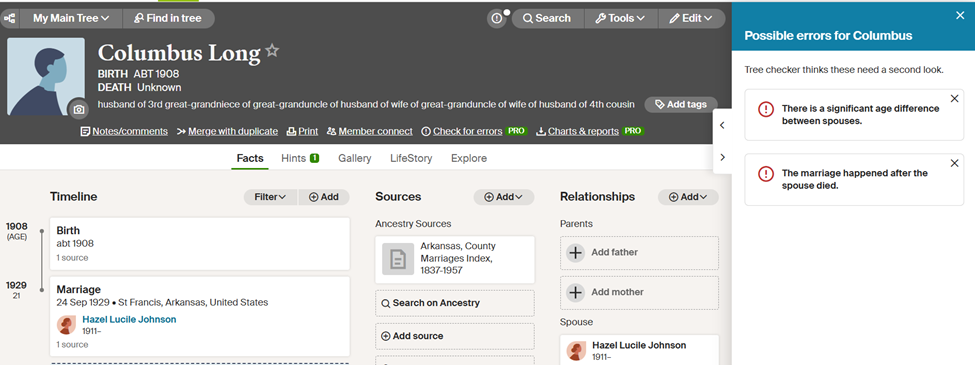
  • “Significant age difference between spouses” um, 2 years!
  • “Marriage occurred after spouse’s death” when no death date was even given. See the above screenshot proving the error was false.

And here’s the real kicker: even when I corrected the problems, they remained in the count. Over the next three days, my “error total” would inexplicably rise despite spending hours cleaning.

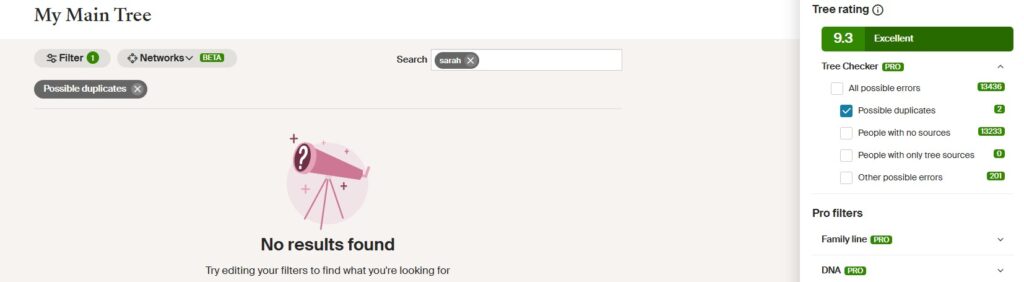
Note that it says there are 2 possible duplicates but none show.

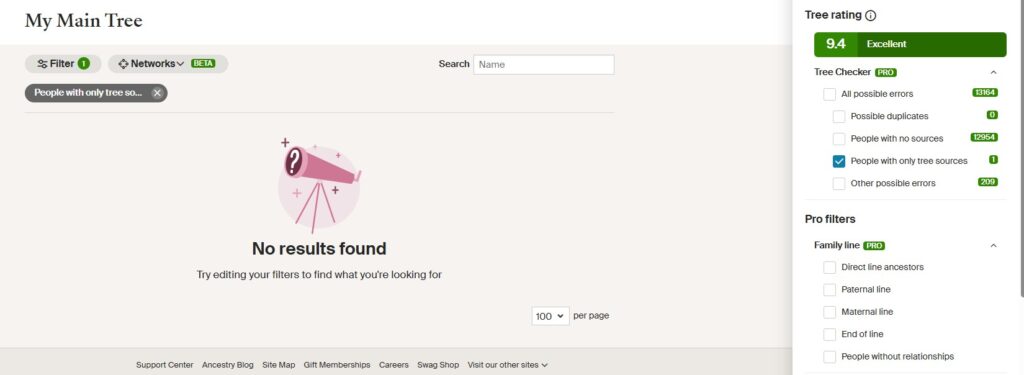
People with only tree sources shows 1 but none are provided.

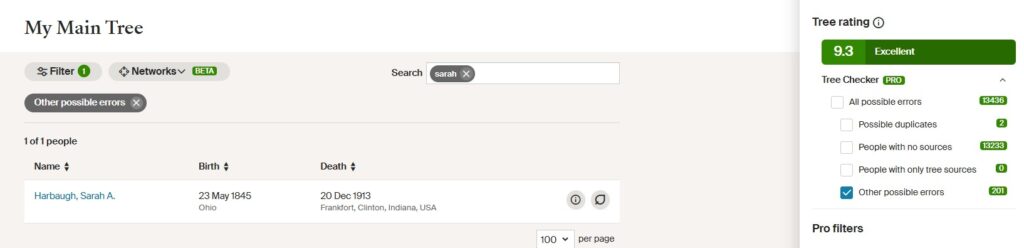
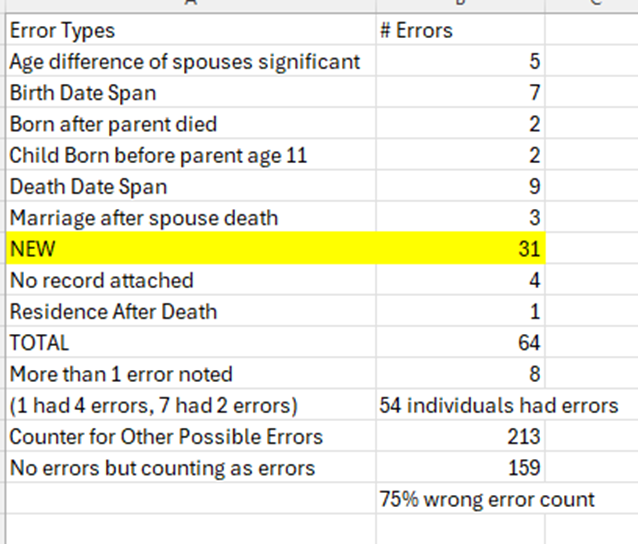
Under all possible errors the counter states 201 but there is only 1 error showing and it is not an error when you go to that page.

This reminded me of a long ago problem Ancestry had with what was called “Ghost Hints.” You can read my how-to-fix blog about it here. I tried that again but it appears that Ancestry has tightened up security and my fix it no longer worked.

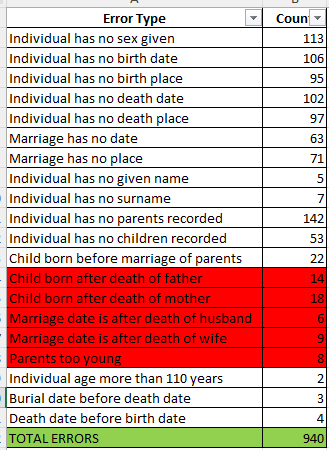
As a genealogist, I dug into the data. I exported the report, analyzed the stats, and discovered something stunning:

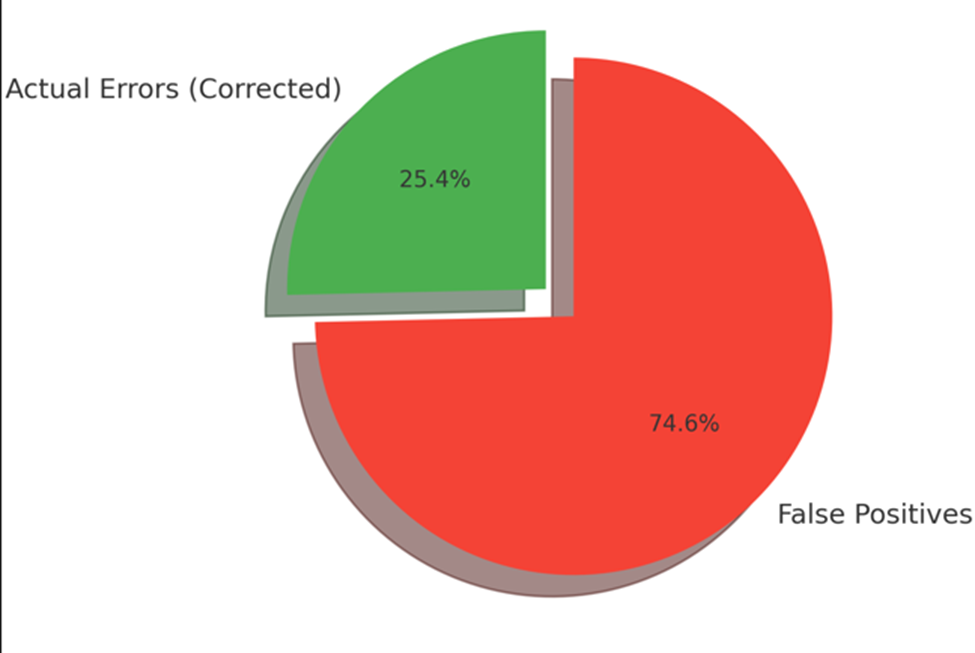
75% of the Tree Checker results were false positives. That’s not a helpful tool -that’s noise! Seeing it graphically made me realize I had been sold a product that doesn’t work:

To top it off, this also distorts your overall Tree Checker “score.” I now wonder what my real rating would be if the tool actually worked. With the changes that took, my score reached a 9.4.

The Final Straw

I then turned to the “No Sources” filter and began manually fixing issues from A–Be, X, Y, and Z. That’s when I hit the wall. Even attaching suggested Ancestry hints they no longer removed individuals from the list. Not user error, this was a flat-out malfunction.

That’s when I noticed the word Beta scattered throughout Pro Tools. Beta testing, by definition, is the final phase before a product goes public. Users test real-world functionality and provide feedback. But here’s the problem:

Ancestry released an untested tool to the public and then charged for it.

If you charge admission before the dress rehearsal is done, that’s not Beta testing. That’s profiteering.

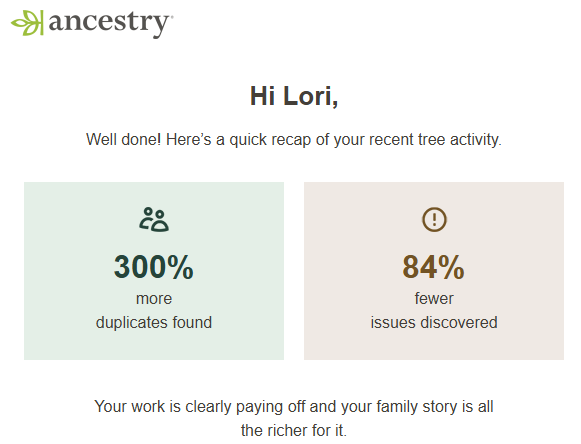
But that’s not all! Ancestry then sent me an email with their data about the changes I made to my tree:

What does 300% more duplicates found even mean?! We know I had no duplicates and most of those that they believed were duplicates were not. 84% fewer issues discovered? Does that mean my tree still has 16% undiscovered issues? If so, how would I ever find them when Pro Tools can’t identify them and the counter doesn’t work?

Where Do We Go From Here?

I’m not just disappointed, I’m concerned. It’s clear Ancestry recognizes the problem of flawed user trees. But their solution shouldn’t be charging extra for a broken product.

And now, they’ve rolled out something even more baffling, a $5,000/year “cohort club” promising professional coaching, a few DNA kits, and discounted branded merchandise. (Want a denim jacket? You can buy one at a discount.) Click the link as I’m not making this up. There VIP service, you get a working phone number if you have a problem. Pardon me, but I always thought that’s what a legitimate business offered TO ALL OF THEIR CUSTOMERS for free.

In a recent webinar, the presenter said she came up with the idea of genealogy coaching. That’s interesting, since I’ve offered coaching on my website for over a decade at a fraction of the price. I believe everyone should have access to their heritage, not just those who can afford a luxury tier. I was also appalled to hear that professional genealogists charge tens of thousands of dollars a year. No, just no!

I use Ancestry daily and plan to continue. But I’ve cancelled my Pro Tools subscription.

Next week, I’ll share how I cleaned up my tree without shelling out extra cash.

When Ancestry.com’s Pro Tools Fail: A Professional Genealogist’s Experience with Ancestry’s Tree Checker Part 1

AI Generated

As a long-time Ancestry.com user, I decided to give their new Pro Tools a spin during the July 4th weekend. With a family member recovering from surgery, I wasn’t traveling, and I had trimmed my client and presentation load to be more available at home. So, for the introductory $7.00 fee, I figured—why not?

Today’s blog, and the two that follow, details what happened next: a real-world walkthrough of what Pro Tools offers and whether it’s worth the extra cost above your regular Ancestry subscription.

After payment—seamless, of course, since Ancestry has mastered the art of parting you from your money—I waited around two hours for the tools to appear. No email alert, just a dashboard update with Pro Tools shortcuts quietly waiting for me.

I expected a guide or orientation video. Nope. Clicking “More Pro Tools” brought up the feature list shown below. So let’s walk through each one:

Networks
This is basically a built-in FAN Club tracker. You can add people to your tree who aren’t related but interacted with your ancestors—neighbors, witnesses, etc. I wish this existed back when I was wrestling with my Duer brick wall. Back then, I added these people manually and unlinked them to avoid false connections. Networks would have saved a lot of time.

Enhanced Shared Matches
The “enhancement” is only one thing: DNA clusters. And only if you’ve tested through Ancestry. Here’s the kicker: MyHeritage offers this for free—even if you didn’t test with them but uploaded your DNA there. Ancestry’s version? Sparse and underwhelming. I have no maternal clusters and only 27 paternal ones.

MyHeritage has far more, thanks to their broader global dataset. Winner: MyHeritage.

Smart Filters
Sort your tree by name, birth, or death dates. Sounds great—until you realize it only displays the first 10,000 people. My tree has 70,000+ individuals from years of research and surname studies. So… not helpful. Pass.

Charts and Reports
You get four types: Descendancy, Ahnentafel, Register, and Family Group, with cutesy “tree” headers (Pine, Birch, Oak, Maple). But each slaps the Ancestry logo on top. Legacy and RootsMagic do it better—and they’re free. Another strike.

Tree Mapper
A world map with green highlights where your ancestors lived. Sounds promising, until it confidently tells me my ancestor in Zwol, Overijssel (Netherlands) lived in South Africa. Another resided in Queensland, Jamaica, New York and not in Queensland, Australia where it was flagged. Error after error makes this useless for real research.

Tree Insights
This tool tells you surname meanings, top five surnames, oldest people in your tree, and “notable” outliers—like couples who married at 1 year old. (Spoiler: they didn’t.) It clearly can’t interpret “Abt.” dates, and many errors it finds weren’t flagged by the Tree Checker. Insightful? Yes. Reliable? Meh.

This is getting long, so I’ll save the main course—Tree Checker—for the next post. Spoiler: It’s the only reason I tried Pro Tools at all. And it’s a tale worth telling.

Stay tuned.

The Summer of My Genealogical Discontent Lesson 5 – Software Shuffle

AI Image

Welcome to another installment in my continuing series on genealogical misadventures! Today’s topic: my long, bumpy road with technology.

I’ve always embraced tech—but it didn’t always embrace me back.

Back in college, I took a programming course in PLC. The professor told us to throw out the textbook and “go with our gut.” Let’s just say… my gut wasn’t fluent in code. I had signed up for the course because my then-boyfriend (now husband) raved about it. Mid semester, I switched to a new instructor—Dr. Birkin, a kind man with a charming British accent who actually used the textbook. I passed the class, but the experience left me scarred. We were still programming with punch cards back then, and one typo could bring the whole system down. I managed to do exactly that once—and earned a full hour of death stares from the engineering students.

So, when software for genealogy came along, I dove in eagerly—because at least I wasn’t programming it myself! But it turns out software has its own kind of drama.

My big misstep? Relying on just one platform.

At first, I uploaded everything—sources, photos, notes—into Ancestry.com. It was easy. It was convenient. It was also incredibly risky.

Because here’s the thing: if Ancestry ever disappears (and nothing digital is forever), so does everything I’ve painstakingly added. Paranoia, in genealogy, can be a healthy survival strategy. And that means backing up your work in multiple places.

When Family Tree Maker (FTM) was integrated with Ancestry in its early years, I jumped onboard. But then the sync stopped working. Ancestry blamed FTM. FTM blamed Ancestry. I spent a year caught in the crossfire, and finally gave up. So did Ancestry—they ditched FTM and partnered with RootsMagic instead.

I gave RootsMagic a try. I liked it—until it came time to update my records. One. At. A. Time. It was tedious, and I let it slide. Eventually, that program stopped cooperating too.

I also dabbled with Legacy Family Tree. I appreciated its features, but the downside? It doesn’t sync with Ancestry. My sources were preserved—but not my photos or documents. Still, it remains part of my backup plan.

Then, about three years ago, Family Tree Maker came back around with an offer. After a helpful chat with their support team, I gave them another shot. The sync worked again—thankfully—just as RootsMagic had failed me.

So, what have I learned from this revolving door of software?

Stay current. Stay flexible. And never trust your entire tree to a single platform.

Test new tools. Keep your programs updated. And most importantly, store your research in more than one place—cloud, external drive, software, even printed backups. Because when one system crashes (and eventually, it will), you’ll have something to fall back on.

If you think you’re immune to tech mishaps, I’ll leave you with this: the only thing more painful than lost records… is knowing you had them, once.

Are You My Cousin? Wearing My Genealogy on My Sleeve

Photo by Lori Samuelson

At this year’s International German Genealogy Partnership Conference in Columbus, I walked away with more than just research tips, historical insights, and meeting some of my long lost family (pic below). I also saw a whimsical t-shirt worn by one of the attendees, Katharina Birch.

I complimented Katharina and asked where she found it. Surprise! It was one of many genealogy-themed t-shirts that her company produces. Carlisle Creations Genealogy Tees etc. say exactly what we’re all thinking during those late nights spent clicking through cousins on Ancestry. The one I couldn’t resist? The bright blue tee with the question “Are You My Cousin?” printed above a bemused cartoon dog and bird duo. It’s quirky, clever, and perfect for sparking conversations at family reunions, society meetings, or even just standing in line at the library’s microfilm reader.

What I love most is how this shirt manages to be both funny and familiar. It captures that universal genealogist’s hope—that the next person we meet, online or in real life, might just be part of our ever-growing family tree.

If you’re looking for a gift for a genealogy friend (or yourself), check out her shop. Supporting creative people in our field is one way to ensure the spirit of our work stays vibrant—and, dare I say, stylish. Not only do they have t-shirts, they also have crewneck sweatshirts, hoodies, and full-zip jackets. Rumor from a reliable source (umm, Katharina) says that some new t-shirts will be available soon so I plan on checking back for one of the many we discussed.

And the best part of this chance meeting with Katharina, two of my very own 6th cousins were also attending the conference and I met two more cousins of one of my cousins. No doubt, if we dug some more, I’d be related to them, too. You can see the Palatinate brood below, photo courtesy of my husband:

Husband of Cousin, Desiree who is a Cousin of Cousin, Cousin Gerhard Hoh with Rita, Me, Cousin Renee, one of the presenters, Margie who is a Cousin of Cousin with her husband behind.

We were celebrating our last night together at where else – a German restaurant in Columbus, Ohio. 

Need Records from NARA? Try This Game-Changer

AI Image

I’ve got a tip for you—one that might just change the way you think about accessing records from the National Archives in Washington, D.C.

At the recent National Genealogical Society conference in Louisville, I was chatting with a colleague who casually mentioned that she’d received records from NARA in under two weeks.

Naturally, I scoffed.

If you’ve ever dealt with government agencies for records, you know the drill: months of waiting, sometimes even a year, and often a black hole of silence. So yeah, I was skeptical.

But she had my attention. I asked who handled her lookup.

Her answer? Gopher.

Intrigued, I made a beeline for their exhibit table. After a quick conversation, I decided to give their service a try.

The moment I got home (okay, right after tossing my laundry in the wash), I created an account on Gopher. I filled out their request form—it was easy, no fuss—and asked for several records I’d wanted for years.

About eight years ago, I visited NARA in person and retrieved Civil War service and Postmaster records for two ancestors. I had a whole list of others I wanted to search, but I only had one day—and it happened to be a busy one. I never got back. Life happened.

But with record access tightening and uncertainty growing, I decided it was time to stop waiting for “someday.”

I submitted my order through Gopher. Eight days later, the digitized records landed in my inbox.

Yes, seriously—eight days.

And they weren’t just quick. They were immaculate. Much better than the old blue photocopies I brought home from NARA years ago. These were clean, clear, and looked authentic. They had digitized 754 pages for my five ancestors!!!!

What really impressed me, though, was their honesty.

Gopher emailed to let me know that some of the records I requested were already available on Fold3. But—get this—they’d noticed the images were glitchy and took it upon themselves to contact Fold3 to report the issue. Who does that?

Oh, and they didn’t charge me for those records either. Double wow.

Now, I know what you’re thinking—this must’ve been expensive. But let me tell you: it was far more affordable than traveling to D.C. myself. No airfare, no hotel, no meals. Just quality records, delivered quickly, without the hassle.

So if you’ve been putting off a NARA request, don’t wait. Get those records while you still can—and consider letting Gopher do the legwork.

Preserving the Past—and Maybe Your Future, Too

AI Image

One of the underappreciated benefits of genealogy? We get a front-row seat to our family’s medical history. I’ve had a doctor roll his eyes when I rattled off the long list of conditions that affected my ancestors. It didn’t faze me. At least I know what to watch out for.

For me, Alzheimer’s runs on both sides of the family tree. So, like many of you, I try to stay up-to-date on the latest research. I had to push hard to get my current doctor to agree to baseline cognitive testing. (He finally gave in.) Though it’s now recommended starting at age 40, I’m well past that—but hey, better late than never.

Years ago, before my mom passed from Alzheimer’s, she participated in a research study at the University of South Florida. I was proud of her then, and now I’ve followed in her footsteps by joining a fascinating new study—and perhaps you can, too.

Here’s the best part:

  • It’s free.
  • It takes less than an hour.
  • You can do it all from the comfort of home.
  • You’ll receive a free one-year subscription to Artifcts.com.

What’s Artifcts? It’s an incredibly useful tool for genealogists and memory-keepers. You can upload photos of your heirlooms, write stories about them, and share those with your family and friends. It’s perfect if you’re downsizing—or if you have treasures your kids aren’t interested in, but you still want to preserve the meaning behind them.

Lately I’ve been blogging about ways to preserve your research. Writing it up is one path. Artifcts offers another. And if you want, you can even turn those heirloom stories into a book.

So, what’s the connection to Alzheimer’s?

Artifcts has partnered with the University of Massachusetts Chan School of Medicine for a brain health study. They’re exploring how the stories and memories you record in your Artifcts, and the biomarkers thus captured from your voice, may relate to cognitive health.ay relate to cognitive health. If you’re 65 or older, a U.S. resident, and speak fluent English, you can take part.

Here’s how it works:

  • Fill out a quick demographic survey (under 5 minutes).
  • Join a short Zoom call with the research team.
  • Sign a consent form to participate.
  • Get free access to Artifcts.com, where you’ll upload photos and tell the stories behind five heirlooms.
  • Want to do more? You can—but only the first five will be used in the study.

Want to learn more? Read the official flyer here:
Artifcts Brain Health Study PDF

The study is wrapping up soon, so I encourage you to reach out to Ellen or Heather at BrainHealth@Artifcts.com while there’s still time.

Let’s honor the past, support important research, and preserve our stories—all in one afternoon.

Are you ever done with your family history?

AI Image

If you’ve been following my blog you’re aware that I’ve written about many topics related to saving your family’s history -like Where do I begin? How do I get organized? Which software programs should I use? How can I keep the costs down on this hobby? I’m stuck, now what? I got my DNA results and I don’t understand them?. Go ahead and use the Search button for specifics.

But you’ve also become aware of the need to stay updated on technology, everything from how to get around software program glitches, hints on how to use Microsoft Word and Excel, and getting the most out of Artificial Intelligence.

The past month I’ve been blogging extensively on how you can get that family genealogy book you have on your to-do list completed and available inexpensively.

You might think you’re done with genealogy when you are holding that book in your hands.

Think again.

Genealogy is NEVER done. There will always be new additions to a family through marriages and birth, and losses, too, through divorce and death.

Genealogy is like the people it records – ever changing.

So, what should you do when you are done writing those books?

Here’s some things I still have to tackle:

  1. While researching for my books, although I’ve digitized everything, I realized that some of my paper documentation (vital records) was not in the order that I’d like it to be (alpha), so I plan on going back and fixing those items.
  2. Some items weren’t in their very own acid free sheet protector. I had combined letters facing forwards and backwards but now I know better and will separate them out.
  3. Records are unfortunately disappearing at a quicker rate than ever before. Remember rootsweb and genweb? Gone but not forgotten. I’m finding many federal government records disappearing, too. (and don’t get me started on the current idiots in charge who have removed the Constitution from the white house website. Disgusting!). The IRS used to have old tax records from the late 1700s online but they have been removed. Makes you wonder why. NARA once had some naturalization records available and those are also gone. Luckily, I had saved what those records looked like so for me, it wasn’t a loss, however, the source citation had to be altered since they aren’t available online any longer. This has all made me a bit paranoid, especially since Indiana recently hid on page 10 of an unrelated bill to not allow access to birth certificates for 99 years after a person dies. Here’s my biggest recommendation and of all the things on your to-do list, I highly suggest you order anything you want while it’s still available AND if it’s online, save it to your own files so you’ll have it when it’s gone. By own files I mean a thumb drive, standalone hard drive and/or Cloud. More info on how to do this coming soon!
  4. My digitized files that I keep in the Cloud need to be cleaned as I discovered I have lots of duplicates and in some cases, the file name needs to be updated. That’s a nice winter project.
  5. You will always have brick walls but now that you’ve written out your family history you’ve identified exactly what you still need to confirm identity or proof relationship. This will be my project for the rest of my life. Use FamilySearch.org’s AI lab, research the siblings more thoroughly, go boots-on-the-ground. When you find what you’re seeking you can always update your book and make it “Revised.” I’ve begun with my husband’s second great half uncle – John Calvin DeWolf who was found dead in the woods in LaGrange, Cook, Illinois on 28 April 1912. How do I know this with no obituary, death certificate, or newspaper story? From the family Bible. Since the death certificate isn’t available online I finally got around to writing for it. No newspapers from the area are left and I’m hoping I can find a coroner’s report to uncover this mystery.
  6. Deal with the photos, sigh. I love photos and I have a zillion, all digitized, but there are many unidentified people. With AI, I’m going to try to figure out who they are.
  7. Go through my books and put stickees on the inside cover of where I want them to go when I’m done using them. Hint: It won’t be to Goodwill. I have some unique ones, like the Barbados census, that should go to an archive that focuses on the Caribbean but doesn’t have the book.
  8. Make sure you’ve recorded who gets what of your research, as well. If you have thoroughly documented it in your books your family is not likely to want it so think again what to do with it. I’ve pitched everything but vital records, letters, and original documents, like awards and baptismal certificates so my kids won’t have much to keep. They’ll have access to my Cloud so they’ll have everything that I did pitch in case they ever get interested.
  9. Keep your records updated. Make sure you record those new births, marriage dates, graduations, etc.
  10. Pat yourself on the back as you’ve accomplished more than anyone else in your family to record your ancestors. When I get to this point, I’m taking a nap.

So, do you now have the answer to my title question?

Creating a Kindle Book Cover for Your Family History Book

Kindle Direct Publishing (KDP) will allow you to design your own book cover. If you don’t want to do that, you can have them do it for you with Cover Create. Personally, I like using a photo that I’ve acquired as a cover. You can make your own cover in Canva, save as a .pdf and upload but I prefer using Microsoft Word. Here’s the directions:

  1. Find a picture and paste to Word.
  2. Save as a .doc to your desktop, calling it Front Cover
  3. Open Paint.net. Copy the picture into Paint.
  4. Select the color picker tool to identify a solid back cover that matches something on the front. It looks like an eye dropper. Write down the three numbers that appear so you can duplicate that color in Word.
  5. Now go back to Word. Place a text box over the picture, type in the book title and your name. Save as a .doc as Front Cover
  6. Format the photo to the textbox by clicking both and then click, under Shape Format – Arrange – Group.
  7. Now you’ll “Save as picture” making it a  .jpg. I save this to the Desktop, too, as Front JPG to differentiate between the document (where you can continue to make changes if needed) and the picture, (which is what you will ultimately upload).
  8. Open a new Word.doc and click Shape Format Outline – no fill– More Fill Colors and type in the color numbers your wrote down. Now the back cover will match the colors on the front cover.
  9. Save as a .doc as Back Cover to your desktop.
  10. Insert a text box to the Back Cover and type in the book description.
  11. Format the text box to the page itself by clicking on both and then by clicking under Shape Format – Arrange – Group.
  12. Save as a .doc. You do this in case you have to change something. Occasionally, how the text box is placed may be a little off on KDP, though it looks perfectly fine on the Word doc. That’s because you have to take into consideration the book binding. Dependent on how thick your book is, there will be some wrapping from the front cover to the back which means you might not like the look. The Word doc will be helpful to quickly alter and reupload, if needed.
  13. Now you’ll click “Save as a Picture” making it a .jpeg and save to the Desktop as Back JPEG.
  14. Open another Word doc – this makes the third! Make sure under layout to change via Page Set Up-Layout-Orientation to Landscape
  15. Next to Layout is Margins – Click Custom and change all four to a .4. You want as much space to work as you are going to be combing the front and back covers together to upload.
  16. Copy and paste the Front cover. jpeg. Click text wrap to move it to the right side of the page.
  17. Click Shape Format and look at the far right to Size. Now type in the height and width of the cover to adjust to  your book size. I used 8.5 x 11” books so my typed in numbers are .7727=6.18
  18. Now copy and paste the back .jpeg to the page and adjust the size as in the last step. Voila! The two images are now the same side. Click the Wrap to move the back cover next to the front cover. HINT: You can hold down CTRL and use the arrow keys to align it perfectly together. You’ll know you did it correctly when you see no white line between the two. If you see a black line, you somehow have a border around the pages. Simple go to Shape Format-Shape Styles – Shape Outline and click No Outline.
  19. Group both front and back covers by holding the CTRL key and clicking both, then going to Shape Format – Arrange – Group. Now you have one large picture. Click “Save as Picture” as a .jpeg calling it Final Cover to your Desktop.
  20. When you are ready, upload to KDP. HINT: If your name got cut off or the text boxes aren’t centered, you can remove your upload by clicking anywhere on the cover on KDP. A box will appear on the right and you can click “Discard Cover.” It tells you this NO WHERE but after experimenting we figured it out. Then, go back to your .doc for whatever you didn’t like, change it, Save as picture as a .jpeg, ungroup the Final Cover, replace the one you didn’t like, Regroup, Save as picture as Final Cover, and reupload.

Yes, this looks and sounds complex, but after you do one, it will be a breeze. Best part, now your book is ready for publication!

Publishing Your Family Story Through KDP

Self-publishing with Kindle Direct Publishing is a breeze. First, create a free account at kdp.amazon.com. Then click the  +Create button to get started.

Next, decide on the type of book you want to create. No worries, you can always change your mind later and even publish in more than one type (eBook and Paperback or Paperback and Hard Cover, etc.).

You also have size options! I selected 8 ½ x 11″ because I had many colored photos I wanted to share. Next you’ll have more options to consider:

  1. Choose your language
  2. Type in the book’s title. Don’t have a subtitle? Leave it blank
  3. Not a series? Just skip this section.
  4. Since this is the first edition, leave the Edition Number blank. One of the benefits of KDP is that if you revise your book, you can easily enter the 2nd (or 3rd, etc.) here so that purchasers are aware of which copy they are buying. This is perfect for when you finally get over that brick wall and can update your story.
  5. Next, type in your name as you’d like it to be shown on the front cover.
  6. If you didn’t work with anyone else on writing the book, leave the contributors blank
  7. The description is important as it will tell buyers a little bit about the contents of your book. You can have your favorite AI proof what you come up with.

As family historians, copyright is always important, but the beauty here is that if you want to make your work available in the public domain, you have that option. Or, what I did instead, was copyright the book on KDP, but when I donated a copy to the Allen County Public Library, I signed a release that allows them to digitize the books for FREE to everyone. My goal was to get the information out into the hands of distant family who can benefit from it, and not make money from book sales.

You MUST select either Yes or No regarding sexually explicit content. If you select no, you can skip the reading age.

I opted to have my books sold through Amazon, but other options are available.

Categories are very important, and you can pick three with subcategories available. Genealogy is under the history reference.

Why select keywords? They help Amazon market your book to the right audience. Think hashtags! You don’t need to come up with 7, but you can if you like.

Since this is your first printing of your book, leave the selection at “Publication date and release date are the same.”

I will release my book for sale as soon as it’s available through KDP, but perhaps you want to wait for a special occasion, like a family reunion.

Click the yellow button, Save and Continue.

The next section is Paperback Content. Here is where you will upload the book cover if you’ve created one and the book contents. You don’t have to do this all at one time, either – once you’ve saved, you can go back to working on your selections any time.

I recommend clicking that you want KDP to assign an ISB number; if you plan on giving copies to libraries, this will be helpful.

Next, upload your manuscript. It does take a few minutes to process.

When it’s ready, you will receive a notice that it has uploaded successfully. Go to the bottom of the page to preview your book by clicking Launch Previewer. You will have to open and close your Word document numerous times if you have included a lot of photos and tables. What the Word .doc looks like is NOT how KDP’s software publishes it, so you may have to adjust your Word .doc 50 times (seriously) or more to get it to print right on KDP. This is the most tiresome and difficult part of the process, but know you are at the end of the journey,y so hang in there.

Now it’s time for the cover. See last week’s blog for the how-to on creating it. I use a photo I have taken and add a text box to it, format it, and upload it through Launch Cover Creator. I’ve tried the .pdf upload and wasn’t happy with the results. If you have no idea what you want for a cover, KDP will give you ideas through Launch Cover Creator.

Next, you’ll need to complete a survey about AI usage.

If you used it, click Yes, and you will have three items to complete – what tools did you use and how much of AI (some sections, extensive, etc.) from a drop-down menu; what images and what translations did you had help with.

When you are happy that the book is formatted properly, then click “Save and Continue” at the bottom of the page. Next step – Pricing:

KDP will tell you how much it is going to cost for them to print the book(s). You set the price after they give you their minimum. I want the books in the hands of people who share my ancestry, and I don’t want them to pay a fortune, so my royalty, as you can see on my latest book, is 3 cents. Yes, you read that right. I’m making 3 cents on every book sold. If you want to be paid for all the time and effort you put it, then adjust the price, but that’s not why I wrote my books.

I didn’t include the lengthy page info that follows, but it will show you how much it will cost in all of KDP’s markets using the type of money that is accepted in those areas. So, for Great Britain, it will display the cost in pounds, places in Europe, in euros, etc.

Obviously, you have to agree to the terms and conditions. I haven’t requested a proof book as I wait until KDP has reviewed it and is ready to publish it.

Next, click the yellow box “Publish Your Paperback Book.” KDP will review your book, and within a day, you’ll receive an email that your book is ready to publish.

Then, I request an author’s copy, which is the bare minimum that you can purchase the book for (so it’s less than the .03 cents of my royalty). I typically buy 3 – one for my husband and me, and one for each of our adult kids. I look through it, and if I’m happy with it, no changes needed, I then order copies for local libraries to donate.  In the meantime, the book is available to the general public through Amazon. Just go to Amazon.com and type in your book title or your name, and it will be there for you to see. They also allow buyers to see some of the contents, the table of contents, and a chapter or two. If you don’t want to sell to the public, take the book off the market.

After KDP reviews the content, you can order Author copies:

That’s it! If you sell books through Amazon, you will get an email monthly that tells you what your royalty payment is. The money will be placed into the bank account that you authorized KDP to use. Any changes – edition updates, corrections, from paperback to hardcover, etc., can be easily made after logging back into your account.

What are you waiting for?! Time to get writing that family history you’ve put off.

Using Microsoft Word to Write Your Family History

 Today’s blog post is on how to set up a Word document to write your family history book.  After opening Word to a new document, your ribbon and blank page will look like this:

Click on ‘References” on the top line of the Ribbon. You’ll see what it looks like below:

Now, click on Table of Contents. I select the basic style but you have options for whatever you envision. You will get a message that you have no items for the Table of Contents. No, you don’t so that’s fine but you will soon.

You have two options now – you can start writing and add to the Table of Contents as you complete sections or you can set up the entire book outline first. It makes no difference which you choose. For my example, I am setting up Word with nothing written yet.

Next, I’ll click on the ribbon “Insert” and under Header & Footer, click Page Numbers. I want them at the bottom middle of the page. Again, whatever is your preference is fine.  The first page of your book begins with the Table of Contents. If you want your first page to begin with the writing itself, you will have to create a page break at the bottom of the page but I’m skipping that for now, setting up the rest of the book.

How do you get items to add to the Table of Contents? Easy.

On the ribbon from the Home option, look in the middle and you’ll see Styles. If you click on the down arrow on the right you’ll see so many more choices:

I stick with the three Heading options. The largest Heading I use for Chapter titles, Heading 2 is for my Pedigree Charts, and the biographies are Heading 3. When I begin writing the page will change from this:

To this:

Why is the info I just typed not showing under Contents? Because I need to update the Table of Contents as I add to it. To do that, simply go back to References on the Header and click under the Table of Contents section – Update Table. It will display the following:

My personal preference is to use Times New Roman, size 12 font for the writing. The default for the heading styles is Aptos (Body). You can change it to whatever you want, but I tend to leave it so that it stands out differently from the rest of the page. I also make sure, under Style, that I have clicked “No Space” when writing the bios, as I want to conserve space as I write. Remember, your book will cost by how many pages and other selections that you have made (hardcover vs. paperback vs. eBook and color photos or not). I’d rather splurge on the color photos I’m including than on the page length.

I like to include a Title Page and it’s tricky to get it added. Here’s a workaround for that.

On the ribbon, under Insert, click Cover Page. I pick Sideline because there is limited color and text there. Don’t worry – you will delete the words and lines that are on this page easily by just clicking and hitting delete. I then have a front page with NO PAGE NUMBER. I will use Garamond font for the information. Click Insert on the ribbon and select a Text Box – anyone will do.

Now, click in the box and delete the words. Go to the edge of the box and make the box larger so that you can type your book title, your name, and Self-Published: (date). I use 48 size for the title and 36 for the subtitle, my name, and publication info. Next, I click on the box outline because I want a clean page, but you can leave it if you like it. When I right-click on the line, I get the option of Fill and Outline at the bottom. I select Outline and click No Outline. My title page now looks like this:

As you write, you will want to use endnotes or footnotes. Although I’d prefer a clean page and have the sources in the back, I had difficulty getting the page numbers to accommodate that, so I went with footnotes. To add a footnote, simply go to References – Insert Footnote. Word automatically will keep the numbers in order, and your cursor will move down to the bottom of the page where you’ll include your source.

After my book is written, I then add the photos, clips of documents, or graphics that I think will make it more appealing to my readers. All of my photos are digitized, so I don’t have to scan them in, but you may have to do that with some of yours.

When I find a photo I like, I simply right-click and copy. Then, I place it where I want to put it on a page by clicking Ctrl  + V to paste:

Photo 1 New Providence Presbyterian Church, Stony Point, Tennessee

Next, I’ll click on the picture and select Insert Caption. I’ll type in the box what the picture is about. Mine defaults to Figure 1, but I can easily change it to Photo by simply typing that in and deleting “Figure.”  You may want to move the photo elsewhere on the page or change the size. Just left-click on the photo and click the box with the upside-down U that appears. I tend to click the middle option on the top – the upside-down U, as it lets the text wrap around the photo.

When I’m done writing my book, I’ll want to include an index. There are several ways to compile one, and they are all a pain in the neck. I have tried using the Word feature, but was not happy with it because it is difficult to read the text for last-minute edits and changes the page numbers. For my last two books, I did it the old-fashioned way – created an index by reading through my book and typing the Subject and Page Number in a second document. I do have three screens on my computer, which makes this doable. If you have only one, you can minimize the two pages so they share the screen. My preference is to make the page numbers in bold, but again, it’s your book and your choices.

After I compiled the index, I typed “Index” using the largest Heading under style and made sure that I went back to References to Update the Table of Contents.

On the document where I created the Index, I clicked on Layout and selected Columns – 2. That saves more space.

On the very end of the last page of my book, from the Insert tab on the ribbon, I click Page Break. The reason is that I don’t want the Index that I’m going to copy and paste into the book to format the rest of the book into two columns. After you’ve added the page break, go to the next page and copy (Ctrl + C) and paste (Ctrl + V) the Index from where you compiled it to your book.

Sometimes, but not always, I run into a problem where the page numbers begin with 1 again. Here’s the quick fix if that happens to you. Go to Insert – Page Numbers – Format Page Numbers and click the box that says to continue from the previous section.

I have the free version of Grammarly installed on Word so it highlights in red issues that need to be addressed – like a comma needed where I didn’t put it. Definitely check out your punctuation and spelling before uploading your finished product for printing.

Next week I’ll be providing you the directions on how to use Kindle Direct Publishing for printing your book. There are many other options available but I went with Kindle for several reasons – the cost was low, I’d had previous experience with it, and Amazon does the marketing.

Instead of having a beach read this Memorial Day, take your laptop and get started on writing your family history!