For the past two weeks I’ve been blogging about Ancestry.com’s Pro Tools. You can read about my experience here and here.
Today, I’m going to show you how to clean your Ancestry tree without paying for Pro Tools. It’s super easy and honestly, I wish I’d thought of this years ago.
Start by picking a free or low-cost software program. Family Tree Maker and RootsMagic both sync directly with Ancestry. RootsMagic Essentials is free, but large trees can slow it down (I blogged about that here). If you don’t need access to your photos or documents and just want to focus on fixing errors, you can also download your tree as a GEDCOM and import it into Legacy Family Tree, which is what I did.
I kept things simple. I didn’t need media files for the check up, I just wanted to identify structural problems in my tree.
Here’s how to do it:
On Ancestry, go to your tree.
Click Tree Settings under Trees > Create & Manage Trees.
Scroll down and select Export Tree.
Once complete, download the file to your computer (it usually lands in your Downloads folder or OneDrive).
Open your genealogy software and import the GEDCOM.
Run the problem checker.
If you run into trouble with the software, you can literally ask ChatGPT (aka Geni!) for help. That’s how I found this entire workaround.
Once your tree is loaded, use the software’s built-in tools to flag potential problems. In Legacy, I went to Tools > Potential Problems. I set criteria to mirror the kinds of problems flagged by Ancestry’s Pro Tools, things like parents being too young, children born after a parent’s death, and so on.
One downside: Legacy doesn’t flag individuals with no sources, which was one of the main issues Pro Tools surfaced. But what Legacy did reveal was surprising and far more accurate.
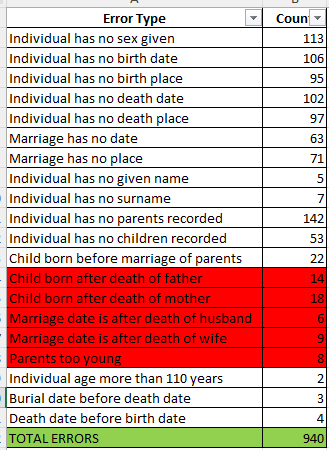
Here’s the report I got from Legacy (the error types flagged by Ancestry are in red):
Let that sink in: 940 total errors, almost all of which are legitimate and actionable. Of that, there was only 55 errors that Ancestry claimed was 301 and they didn’t identify these people! I plan on cleaning up all of the errors Legacy found as having two individuals over age 110 years is a problem Ancestry should have discovered. And the individuals with no sex given? That is a continual flaw in Ancestry’s system when you are adding new individuals.
Unlike Ancestry’s Tree Checker, which falsely flagged over 10,000+ records in my tree, Legacy gave me a clean, accurate list I could work with. I now have the names and the issues. I’m going through them one by one and making the corrections directly in my Ancestry tree, since that’s still my primary working tree. I’ll continue syncing it with Family Tree Maker.
And if I get another $7 Pro Tools offer in the future? Sure, I might try it again just to check whether they’ve cleaned up the bugs. But I’ll cancel it right after. Because let’s be honest:
If Ancestry really wants our trees to be accurate, they should provide these tools for free.
We are already paying for the data, the DNA, the platform and in many cases, contributing our own hard-earned research. Charging extra for a tree-checking feature (that doesn’t even work right) feels like asking users to fix the foundation of the house they already paid to build.
So, skip the upsell. Use free software. Clean your tree with confidence. And let’s keep our standards higher than their price tags.
Last week, I shared my experience with most of Ancestry.com’s Pro Tools—an add-on offered for $10/month (I got in for $7 with a promotional email). You can read about those features here. Today, I’ll dive into the tool that motivated me to subscribe in the first place: Tree Checker.
If you’ve noticed the new Tree Checker score on your Ancestry tree, you might be curious. Mine showed a 9.1—“Excellent.” That aligns with my belief that my tree is about 90–95% accurate. But let’s be honest: no one has a 100% accurate tree. Without DNA confirmation for every line, there will always be an element of uncertainty. Still, I’m committed to removing the detritus that’s accumulated over years of brick wall chipping, FAN Club research, and lineage society applications.
Back in 1990, I started my tree with 50 people, using a TI-89 cartridge program. By 1995, I was entering data into FamilySearch’s .paf format. When Ancestry came along, I uploaded my work to what’s now the ubiquitous .gedcom. My skills, and my tree, have grown significantly since then. I’ve cleaned up my Swedish, Croatian, French, German, Swiss, and Dutch branches. What remains is my largest line: Great Britain. Before writing my next book, I knew it was time to clean that section.
I regularly back up my Ancestry tree to other programs (Family Tree Maker, Legacy, RootsMagic), all of which offer tree-checking tools. But because Ancestry is my primary research platform, I’ve been hesitant to clean externally and re-sync. So I was hopeful that Tree Checker would finally give me an effective cleanup solution within Ancestry.
Here’s what happened.
Tree Checker: Expectations vs. Reality
When I launched Tree Checker from the dashboard, I was greeted with a gut-punch: 14,000+ possible errors.
The majority were labeled “People with no sources.” I immediately knew what was going on. In Ancestry’s early days, there wasn’t a “web link” option. I got around that by uploading source PDFs to the Gallery or by placing citations in the timeline. Unfortunately, Tree Checker ignores those, unless it’s housed as an official Ancestry “source,” it’s invisible to the system.
But that still left other problem categories:
Possible Duplicates
People with Only Tree Sources
Other Possible Errors
I’ll add here that one of the most helpful “error types” isn’t even under Tree Checker, it’s found under Pro Filters > Family Lines > People Without Relationships. These are individuals floating without connections, often leftovers from attempts to delete a line. I had about 2,000 of these and quickly removed them.
People with Only Tree Sources was next. These were added from others’ trees, unsourced. That’s an easy fix, either delete them or attach a hint. Done.
Possible Duplicates looked daunting at nearly 2,000, but the number was misleading. Triplicates and higher were counted separately, and after filtering, I had fewer than 1,000 to review. Some were legitimate merges (e.g., marriage records auto-adding a new spouse). Others were not duplicates at all: families who reused names after a child died, or multiple “Johann” Harbaughs with different middle names. I worked through them in two days.
The Glitches Begin
After carefully resolving every duplicate, I noticed something troubling: they didn’t disappear from the error list. No matter what I tried, refreshing, logging out, rebooting, clearing cache, Tree Checker continued to show errors I had already corrected. I even tried deleting and re-adding a person. No dice.
Still hoping for results, I moved on to “Other Possible Errors” and found myself stunned.
Ancestry itself was causing many of the flagged issues. For instance, if a child was born in 1937 and enumerated in the 1940 census, Tree Checker would flag it as “Resident listed before birth date.” The kicker? That census record was automatically added by Ancestry in the timeline for 1935. To clear the error, I had to delete 1935’s entry FOR EVERY ONE born between 1936-1940.
Swedish church records were another problem. Ancestry indexes these by range (e.g., 1723–1728). If a child was born in 1724, Tree Checker flagged the 1723 record as occurring before birth. Completely illogical and a huge waste of my time to clean up!
Some new error flags also made no sense:
“Birth/Death dates span more than 10 years” with only one sourced date. What?
“Significant age difference between spouses” um, 2 years!
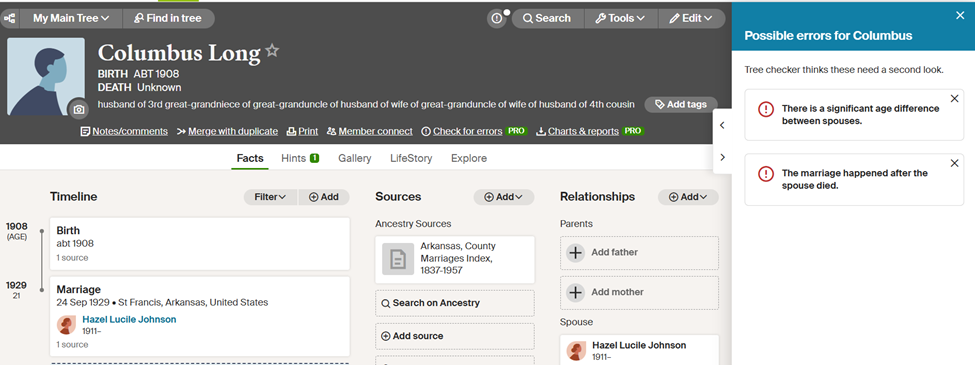
“Marriage occurred after spouse’s death” when no death date was even given. See the above screenshot proving the error was false.
And here’s the real kicker: even when I corrected the problems, they remained in the count. Over the next three days, my “error total” would inexplicably rise despite spending hours cleaning.
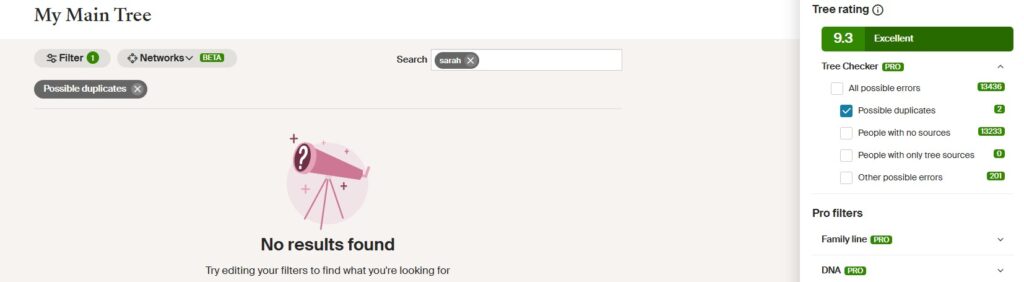
Note that it says there are 2 possible duplicates but none show.
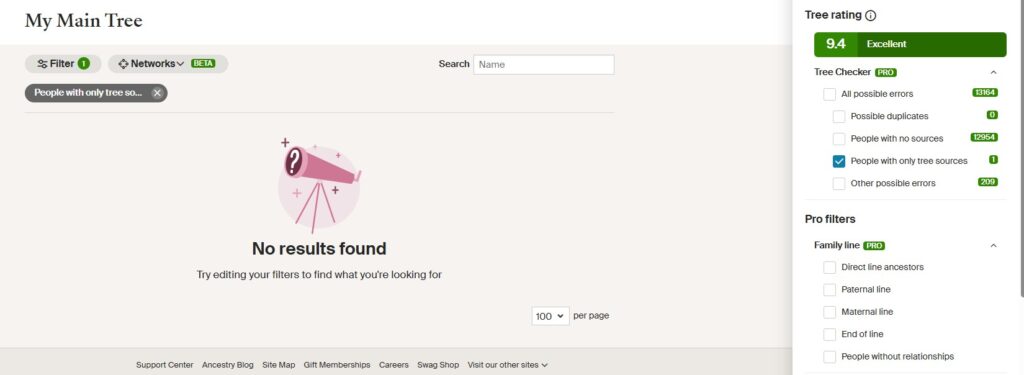
People with only tree sources shows 1 but none are provided.
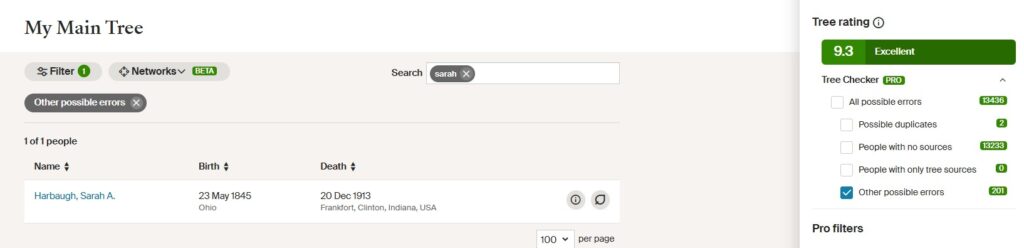
Under all possible errors the counter states 201 but there is only 1 error showing and it is not an error when you go to that page.
This reminded me of a long ago problem Ancestry had with what was called “Ghost Hints.” You can read my how-to-fix blog about it here. I tried that again but it appears that Ancestry has tightened up security and my fix it no longer worked.
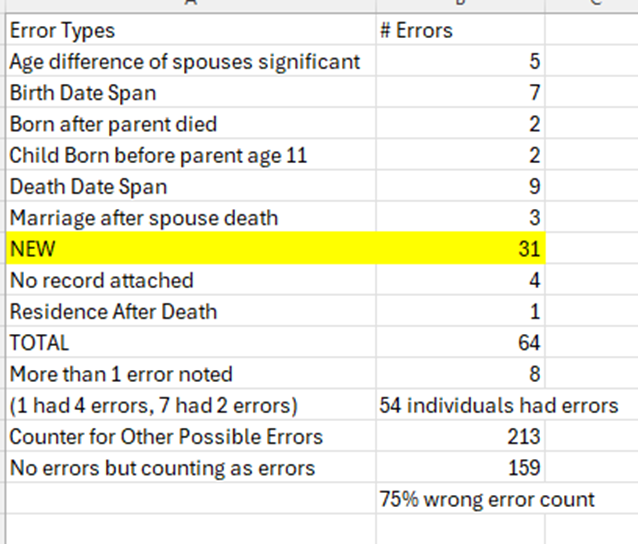
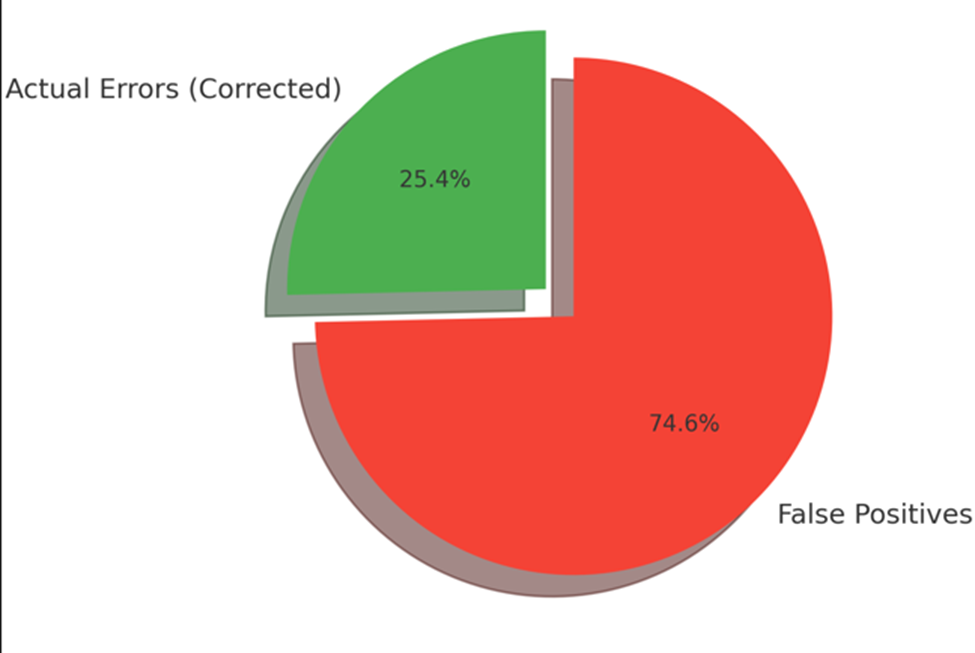
As a genealogist, I dug into the data. I exported the report, analyzed the stats, and discovered something stunning:
75% of the Tree Checker results were false positives. That’s not a helpful tool -that’s noise! Seeing it graphically made me realize I had been sold a product that doesn’t work:
To top it off, this also distorts your overall Tree Checker “score.” I now wonder what my real rating would be if the tool actually worked. With the changes that took, my score reached a 9.4.
The Final Straw
I then turned to the “No Sources” filter and began manually fixing issues from A–Be, X, Y, and Z. That’s when I hit the wall. Even attaching suggested Ancestry hints they no longer removed individuals from the list. Not user error, this was a flat-out malfunction.
That’s when I noticed the word Beta scattered throughout Pro Tools. Beta testing, by definition, is the final phase before a product goes public. Users test real-world functionality and provide feedback. But here’s the problem:
Ancestry released an untested tool to the public and then charged for it.
If you charge admission before the dress rehearsal is done, that’s not Beta testing. That’s profiteering.
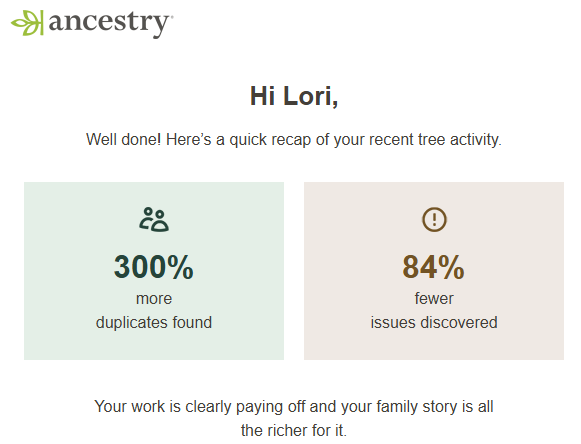
But that’s not all! Ancestry then sent me an email with their data about the changes I made to my tree:
What does 300% more duplicates found even mean?! We know I had no duplicates and most of those that they believed were duplicates were not. 84% fewer issues discovered? Does that mean my tree still has 16% undiscovered issues? If so, how would I ever find them when Pro Tools can’t identify them and the counter doesn’t work?
Where Do We Go From Here?
I’m not just disappointed, I’m concerned. It’s clear Ancestry recognizes the problem of flawed user trees. But their solution shouldn’t be charging extra for a broken product.
In a recent webinar, the presenter said she came up with the idea of genealogy coaching. That’s interesting, since I’ve offered coaching on my website for over a decade at a fraction of the price. I believe everyone should have access to their heritage, not just those who can afford a luxury tier. I was also appalled to hear that professional genealogists charge tens of thousands of dollars a year. No, just no!
I use Ancestry daily and plan to continue. But I’ve cancelled my Pro Tools subscription.
Next week, I’ll share how I cleaned up my tree without shelling out extra cash.
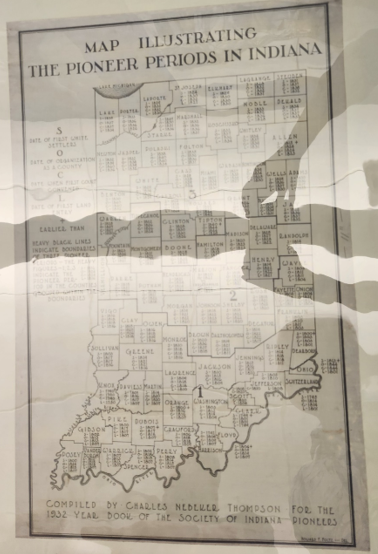
Photo taken at Indiana Historical Society by Lori Samuelson
I came upon this map when I visited the Indiana Historical Society in Indianapolis in July with the Society of Indiana Pioneers (SIP). The map was devised by SIP in 1932 to assist potential members with locating their ancestor’s county’s founding between 1790 and 1844. Indiana became a state in 1816 but had become part of the U.S.’s Northwest Territory in 1787. After statehood, as the population rose and scattered, larger counties were made into smaller ones. The pioneer settlement period in Indiana ended in 1849 so this map noted most of those changes.
Here’s a recommendation if you find a unique map either in person or online – look for another. I realize my photo is a tad hard to read but under each county there is a code of “S, O, C, L.” What does that mean?
I searched online and found the identical map with notations that explained it: S was the date of the first white settler, O was the Date of Organization, C means the first Count Occurred, and L is the first Land Entry. The codes and a blow up of the map is available online here.
Maps are an important part of genealogy. Checking to see if the resource is widely available can help you get the most out of your research.
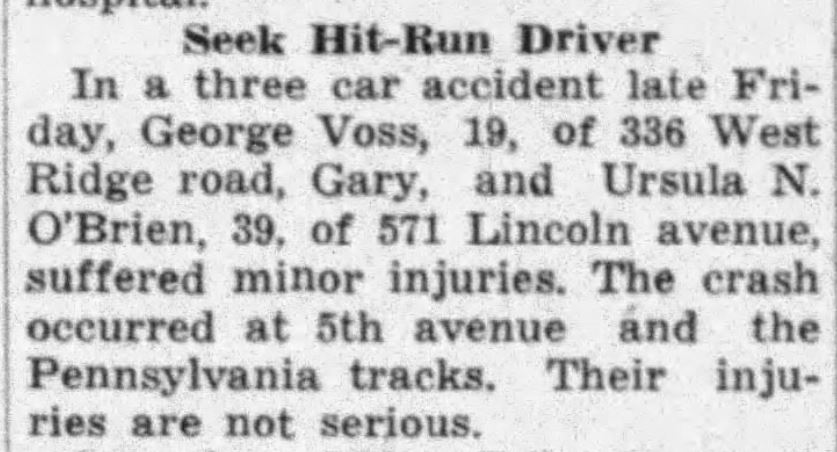
Newspapers.com Hammond Times,3 Feb 1941 p. 2. c. 6
I’d like to pass on this awesome tip provided by Andrea during a recent Genealogy Club meeting at the Garrett, Indiana Public Library. Andrea was informing the group about Newspapers.com, which is free in Indiana through local public libraries.
Andrea suggested searching by address. I never tried that before and thought it was a novel idea. I immediately put in my childhood address and was shocked to learn that my grandparents had placed an ad in the real estate section of a local newspaper in 1964 to rent out the home that I lived in. I had no idea!
I recommend also typing in your old phone number. That showed up in the classified ad.
I also discovered the clip above about my uncle who had been involved in a car accident in 1941. I would have never found that without the address as the article misspelled his last name.
When I entered my husband’s home address, up came his father who was a political delegate in 1971. By law then, delegates names, addresses, and phone numbers were publicized.
I tried the tip with chroniclingamerica.loc.gov but wasn’t as successful. I’m planning to use it with other sites, as well.
Give this a try and let me know of your wonderful finds!
Courtesy of en.Wikipedia.org. Thinking of you, Ukraine!
I’ve been Spring Cleaning so I’m a tad late on posting today. I’m really supposed to be in a local genealogy society’s Zoom meeting but they are having tech issues so I decided to blog while I wait to be let in.
I’m excited to write that I have FINALLY finished scanning my older genealogy collection from my family. I had so much dust, bits of dried brown paper, even glitter from old greeting cards around that I spent the last week plus majorly cleaning. Amazing how those documents permeated nooks and crannies throughout my home!
After I get the outside pressure washed, my favorite job, I decided to scan additional documents, such as medical records, too. I’d like to go as paperless as possible going forward.
Here is some new genealogy news you might find interesting:
ROOTSTECH may be over but if you attended, you should be getting an email notification of your “cousins” that also logged on for the conference. Follow the link (which expires on March 25th) and then click “Roots Tech Relatives.” My relative number is 8,944 – those would be the people who also have a FamilySearch.org tree that matches the people I have in my tree. A map appears and you can click to see folks from your area and be able to contact them if you like. Another alternative is to scroll down the page and click in the Surname box – adding a surname you are interested in connecting with. The default is your current surname and if it’s like mine, Samuelson, is not going to find you much. There are loads of Samuelsons that aren’t related to us because of Swedish naming patterns. I plugged in my top 3 family surnames – Koss, Leininger, and Landfair and discovered that there were 5 Leiningers in attendance but no one with the other two names.
Have New York City families? Then you’ll love the fact that the vital records are 70% digitized and available for FREE. Check out the link. A list of all available records can be found here.
MyHeritage.com continues to improve its site. If you love timelines, you’ll enjoy their new color-coded ones with graphics. This blog article will explain it.
I’m not sure how I feel about their new Live Story which is a tool for you to make animated videos of your ancestors telling their stories. Personally, it’s a little too creepy for me but if you are into AI and liked Deep Nostalgia, this is definitely for you. Try it out here.
On the more traditional genealogy path, MyHeritage.com has increased its French records by adding Filae’s family trees. That 269 million! Read about it here and there is a link in the article to start researching the records.
Sigh, so many records, so little time. Have a wonderful week searching!
New Settings for Links on RootsMagic 8Kind of apropos that RootsMagic decided to unveil their new software during the magical month of October. There are a lot of changes and I have only begun to learn the new software. Here’s my experiences so far…
A week ago Sunday I tried to purchase the new version via a link in an email I received. The link didn’t work. Since I’ve been a long time user of the program and wasn’t a new subscriber, I could simply purchase an update instead of the new version’s software. The prices change beginning on 10/17 so I wanted to take advantage of the special offer.
Since the email link didn’t work I Googled for the product. I was entering my info but when I clicked to complete the transaction I got an error message that my card didn’t go through. I tried again. It still declined. I then got a bank alert that they had put the card on hold – did I really make that purchase? After informing the bank I had, I thought that the transaction would go through.
By the following day it still hadn’t; after checking my credit card and seeing that the bank did not process the payment I went back to the site and tried again. Got the same decline message. I pulled out a different card and it went through with no problem as minutes later I had an email with my confirmation of the order and another email with the download instructions. Don’t understand why the first card didn’t work as I used it before and since with no problem anywhere else.
I went back to the site and tried to download. So far – so good!
The program looks very different. I thought I would try to link with Ancestry.com and download my Main Tree again as I had with the previous version. I knew I was signed out of my RootsMagic 7 link as I had tried that a week earlier and it would not allow me to sign back into Ancestry.
Every time I logged into Ancestry through Version 8 the program would freeze. Sometimes I got a runtime error, sometime I received a message that I was out of space. Other times it just stopped working and I had to shut the program down through Task Manager (control + alt + delete). Unbeknownst to me, Version 8 was moving everything from Version 7. Since my trees have a lot of data and images, this took time. I wish that information had been available because I wasted time over two days to try to get an Ancestry connection.
On the third day I discovered, while poking around the new software, that all of my trees from previous RootsMagic versions had been loaded into 8. I clicked on my largest tree to check to make sure everything had moved. It then asked me again if I wanted to link to Ancestry.com which I wanted. I went to bed before the program finished.
The next day, the program was again frozen. Yes, the Disney musical Frozen is Magical but what I was experiencing was not! I again closed it out and reopened it. I could see photos, which was a plus. Before I started clicking into individuals to verify that stories and research had also been saved, I received the popup at the top of this blog.
So, I followed the instructions above and signed into FamilySearch. I’m not sure how that’s going to work because FamilySearch does not allow you to permanently be signed in unless you have a church membership, which I do not. Maybe there has been a deal cut with RootsMagic that I’m not aware of.
The Ancestry direction is interesting as I would have had to spend a lot of time looking around the site to discover where the update for that was located. I don’t know why it wasn’t under Settings where you’d find the other companies. I also don’t understand why I have to keep signing into Ancestry.
There are several online courses to help users and I intend to view them soon.
If you are new to RootsMagic and this is turning you against buying it, that’s not my intention. I loved the past software and the tech support in the past. I expect it will continue but this new makeover is quite dramatic. This program does permit you to identify any changes you make to your Ancestry.com tree and add to your RootsMagic tree. It was time consuming if you didn’t do it periodically but it was a nice way to save all of your information on your desktop, external hard drive or another cloud in case there is a problem with Ancestry.com.
For the old time users, I’m sure we’ll get the hang of the changes soon; I just wanted to let you know where you used to get linking info is not where it now resides. Patience in genealogy is important and with this change, even more so.
Do you have Zoom fatigue? Does the thought of watching one more online class make you want to throw something at your computer screen? If so, this blog is for you!
I keep a record of the courses I take on my website for several reasons. As a member of the Association of Professional Genealogists, I need to complete 12 hours of professional development yearly to renew. I participate in way over that requirement because I believe in keeping current and strongly support continuing education. Even in the most basic courses, I usually learn at least one new trick or I’m reminded of something I heard before but didn’t try myself. By keeping a list of the courses I’ve viewed, I can avoid re-watching those I’ve taken. I can look at what I’ve taken when I am approaching a new work task and refer back to the syllabus of the course that may help me with the task at hand. I can also determine if I’m lacking in an area so I can then actively seek out those areas to beef up on.
Personally, I’m loving the Zoom/Go To Meetings/Teams conferences and am actively advocating the organizations to which I belong to continue with at least a hybrid model when the pandemic is over. Don’t get me wrong, I love to travel and to meet with other passionate family historians in person. I just don’t think that old thinking model is right anymore. Watching from your home is helping the carbon footprint. I’m saving lots of money by not having to pay for the travel expense, hotel accommodations and food. I’m also winning big on saving time by staying home. I can afford to attend more conferences than I would have before covid so I’m definitely ahead there. People from all over the world can attend, although the time differences are problematic and largely unfair to those not living on the eastern US coast. I’ve recommended that presentation times vary as this is just not fair to everyone. The online format is a win-win for both those who would have difficulty traveling because of a disability or childcare and for the organization who now has more participants. The voices of those who couldn’t attend before can now be heard.
For the conferences that offer breakout rooms, I have the extra advantage of still meeting up in a group and discussing the topic that we just viewed. If you are shy, no worries! It’s a great place to be a fly on the wall.You can turn your video off and just observe. I will bet there are many mouthy people like me that will be actively engaged and you’ll hear discussions and gain new insights by just listening.
For the conferences that don’t off that feature, I definitely use the chat function. Click to have the chat up and place it off to the side of the screen so you can follow along with the side conversations while the presenter is giving the information. This make me think of another plus for online classes. Remember attending a lecture in the past and the folks behind you that wouldn’t stop talking? You’d shift in your seat. Then you’d turn and give them the teacher look. They didn’t care and continued. Finally, you asked them nicely to be quiet. “Sorry,” they’d say but a few minutes later they were back to their sidebar discussion. None of that any longer! The chat is that conversation and if it distracts you, then just ignore it. At the end of the lecture, before you sign off, you can read it and take note of any web addresses that were posted. You can also copy and paste it. If your Zoom conference doesn’t have that option with the click of a button here’s another option – just hit the control + C to copy the info and then, in an open Word document, click and paste (control +P).
Here’s another chat hint – you can message the group or just an individual. A few weekends ago I took a class on the Chicago fire given by the Chicago Genealogical Society. Several of my husband’s cousins were in attendance. I sent them private messages in the chat. It was kind of like sitting with friends. If you know another attendee is watching this works well. If you don’t know if one of your friends is on, simply click in the chat box from All to Private and you’ll see a list of those who are attending. Scroll down the list to identify the folks you know and send them a personal Hello!
If there is a syllabus, I keep it electronically in Dropbox under a folder called Syllabuses (duh!). Inside the folder I have more folders for the offering organization, such as APG, NGS, etc. No more wasted paper or killing my printer ink. It’s much easier to find what I’m looking for quickly and using the control + F (find) helps me zero in to discover the exact item I’m looking for on the syllabus. That list I keep on my website is a time saver here as if I can’t quite remember which organization offered the class, I can look on the website for the topic and then find where I’ve filed it in the online folder.
While I’m watching the lecture on one screen, I have my second computer screen up and waiting to try out what the presenter is talking about. For example, this past week I watched the National Genealogical Society sponsored Ancestry course on the new update to their Freedmen Bureau records. I had Ancestry open on my second screen so as the two presenters were discussing how best to search, I was trying it out myself. I do that because I can still ask the presenters questions, either through the Chat or the Q and A feature before the class ends if I’m having difficulty in following what they suggest. This sure beats trying to check it out on my cell which is what I used to do with on site classes. I’m also getting practice which increases the likelihood that I’ll use the tool in the future.
Also in Dropbox, I keep an Excel spreadsheet called Help Ideas. It has only 3 columns – Topic, (web) address, comment. When I’m attending a lecture and the presenter recommends a specific website or archive to locate a record, I record the information on my Help Ideas spreadsheet. For topic, I might record “Blog”, record the web address and under comment, record the presenter’s name and date of the lecture. This has helped me with brick walls as no one can possibly remember everywhere to look. Sure the Familysearch.org Wiki is wonderful but it is not complete. Remember, I’m only recording info that is new to me or that I want to gain more information about later. When I need to research in an area I haven’t done in awhile, it’s simple to filter for that topic and instantly I have a great list of where I can research. Make sure you keep the list up so you can add to it while you’re watching.
Last but not least, if you are watching a pre-recorded lecture, definitely use the speed up button if available and if the presenter speaks slowly. This is my magic trick for how I get through so many lectures in a rainy afternoon. Trust me, you get used to the funny sounding speech after only a lecture or two. I always use this for classes that are more than 50 minutes and for those that might be on a topic I have a good knowledge base already. If the presenter does get to a part that is new to me, I can always return the speed to normal to make sure I understand the information. It’s simple to back up and listen again if you missed something.
Now go pop some popcorn, get in a comfy chair and watch those lectures you have on your to-do list.
My blog is late today as I had unexpected tech issues, the bane of my existence! This past week, first my husband and then I, noticed an “enter code” button that appeared on any Microsoft product we were using on our desktops. It finally dawned on us that the educator license we had with Microsoft was being removed since we both retired from our academic careers this month. This was a totally unexpected situation as we had paid for a license for our computers that didn’t expire. Microsoft only allows military veterans to continue and not educators. Who knew?! Took the time this morning to buy two new licenses – one for my business and the other for home use. The Microsoft site was not working well and wouldn’t allow me to save my domain info so I’m going to have to go back on later. After the slow download I freaked out when I opened Word and only documents from 2019 showed up. I was able to open two docs from my desktop I just created in the last two weeks and once they opened, they showed in the list when I reopened Word. I then went to Dropbox and opened a pdf from January and a doc from last August. Once opened, they show in the Word list. I don’t understand this at all but as long as I can open older documents as I need them, I’m good.
Here’s an update on my Bible blog from last week – got a heartwarming thank you from my distant cousin who will be receiving the Landfair Bible. I’m so glad it found a good home, away from hurricanes, humidity and mold. Remember this story this week when you run into a rude person – there are a lot of good people out there, just not everyone!
Now, for today….
I had a wonderful 2 day Professional Management Conference hosted by APG. It was just awesome reconnecting with other professional genealogists in the break out sessions and the lectures were informative. I plan to be adding a page to Genealogyatheart.com with my lectures soon. Unfortunately, the terms of my retirement do not allow me to “teach” in any format for the next 6 months so that’s all on hold for awhile. The conference did nudge me into making proposals to my state genealogy group with ideas for journal articles. I’ll be writing 3 for upcoming issues. Working on the first, along with the Bible interaction last week, gave me the idea for today’s blog.
Let’s think of the Louis Armstrong song, You Say Tomato. Genealogy is fraught with pronunciation problems. When I spoke to the lady from Ohio about the Bible, I told her I did not live close to either Lima (lee mah) or Celina (Seh lee nah). She replied she didn’t either and then laughed. In Ohio, those places are known as (lie mah) and (sel lie nah).
This got me thinking about why it’s sometimes so difficult for us to find an ancestor’s former residence. We aren’t seeing it in print – we’re hearing it. Same issue with census enumerators hearing our ancestors and misunderstanding their English as a second language pronunciation. This week, I’ve been researching a local family from Greece. Their name evolved from the original spelling from the first generation to how the name is pronounced in English for the second generation. Loved the Find-A-Grave note that was added by the memorial creator explaining why the names were different!
To complicate the situation, the same word can be pronounced differently depending on the location. One of my children spent time in both Grenada’s. That would be Gre nae dah, West Indies and Gre nah dah, Spain.
Next time you are stuck on a location or surname, try thinking about it in a variety of ways. Type the word in Google and add “pronunciation.” Try this for “Lima Ohio pronunciation” and Lima Peru pronunciation.” Pretty neat trick!
Do you have DAMAGED PHOTOS that break your heart because you can’t appreciate the picture while fixating on the ugly part? I do and I was never able to use the photos in family projects because I couldn’t restore them to their former glory.
Thanks to MyHeritage.com, it is now simple, quick, easy and free (some limitations apply) to return the photos to better than new. Here’s how:
First, upload your photo to be repaired by logging into MyHeritage.com and click on Photos in the ribbon, then click the Upload box on the right.
Once uploaded, the photo appears with your media items. Now, click the photo needing to be repaired.
Above the photo on the right hand side, the following options are shown: Repair, Enhance, Colorize, Animate. To correct the photo it’s recommended you select options from left to right.
Once I click Repair and MyHeritage.com does it’s magic, the photo will be shown as follows:
Much improved but still not perfect. Sure, I can clip out the damage to the upper portions of the photo but I want to restore the picture to as close as new as possible so here’s what I’m going to do – On the upper left hand side of the photo, click on the gear icon which is the settings option. The photos are first repaired Gently – that’s the default setting. I’m going to click the box Extensive Repair Option and Preview. Now look at what it does:
Isn’t that AMAZING?! You can stop there but I wanted to make the photo even more defined so I next clicked on Enhance. Here’s what the result was:
Due to the size limitation on my blog, the subtle improvements are not as apparent as on my larger computer screen but when you try it you’ll notice the difference. Next I decided to go ahead and colorize it. I’ll be honest, I’m not a big fan of colorizing because I like to know FOR SURE if what I’m presenting in my research is accurate. It is fun, however, to imagine what the original outfits looked like so I decided to click the Colorize button to see what the program would select:
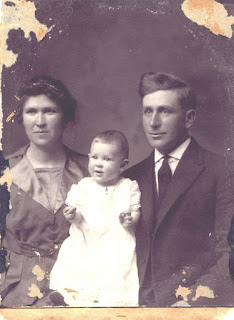
I again used the Settings (gear icon) to tweak the saturation manually as the first colorization picture showed a pink hue on right side of the dress. Knowing the individuals as I did, that wouldn’t have been the color choice. The brown/silver grey was more in keeping with the time period (1917) fashion and the wearer’s preference. In my excitement to get the photo corrected I neglected to tell you who the people are! This is a photo of my paternal grandparents, Edwin and Lola Landfair Leininger, and their oldest child, my dad, Orlo Guy Leininger. He was born June 4, 1917 so I guess this must be a photo that commemorated his first Christmas. Nothing was written on the photo back (of course). I received the photo 5 years after my father’s death in a box that was kept in a damp unheated northern Indiana basement for probably at least 10 years. I’m fortunate that the photo survived, albeit damaged. I’m thrilled that it has been restored. Thanks, MyHeritage.com for your new feature! For the ethic minded, I also appreciate that MyHeritage.com acknowledges that the photo was altered. You can see the After written in the upper left hand corner of the photo and on the bottom left, icons appear showing exactly what features were used to change the original picture. I’ve blogged before about the animation feature but it has since added many new features, too. I couldn’t resist animating my Dad, I’m sure he would approve:
Set your alarm and check out MyHeritage.com for a wonderful new feature that will be rolled out tomorrow. I promised Daniel Horowitz I wouldn’t tell you WHAT it is but I don’t want you to miss it as I think you’ll be as excited as I am to give it a try.