For the past two weeks I’ve been blogging about the importance of personalizing your AI. Last week I wrote how to accomplish that with ChatGPT. Even if you only have a free version, it’s important for you to customize. I also strongly encourage you to have a free account with all of the AIs so you can check their work as some are stronger in one area than another.
Here’s how to personalize with
CLAUDE:
Click on the lower left circle that is your profile icon. Select Settings. Click General. In the box, tell Claude your instructions to use every single time you being a chat.
GEMINI:
Click on the lower left profile icon. Then click on the right setting icon for new pop up window seen above, look for Personal Intelligence. Next click Instructions for Gemini. Insert your instructions in the box.
PERPLEXITY:
Like, ChatGPT and Claude, click on the lower left profile icon then click Account. Next click Personalization. Complete the information under Custom Instructions
Now you’ve saved yourself from having to retype the same instructions repeatedly. Remember, if you provide a conflict in an instruction in the chat box from what you’ve written under personalization, no worries! The prompt box will override what you have in personalization. If you do find yourself having to give the AI repeated instructions, then go back to the personalization setting and update. Happy Researching!
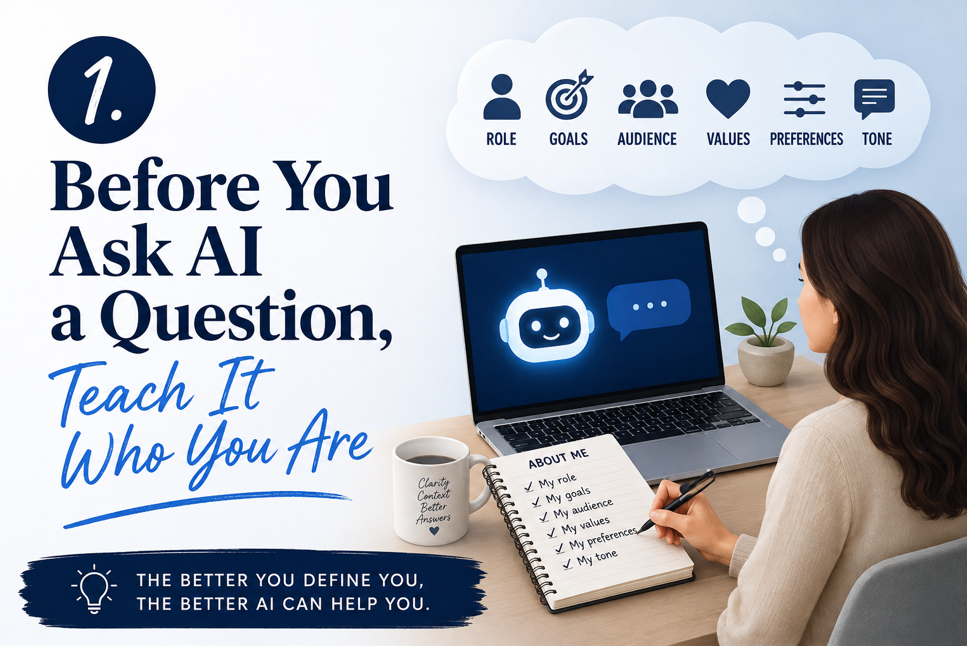
In my last article, I explained why every genealogist should customize their artificial intelligence assistant before asking it to help with research. Think of it as introducing a new research assistant to your way of working.
Now let’s put that idea into practice with ChatGPT.
The entire process takes only a few minutes, yet it can dramatically improve the quality and consistency of the responses you receive.
Step 1: Open Your Settings
Sign in to ChatGPT.
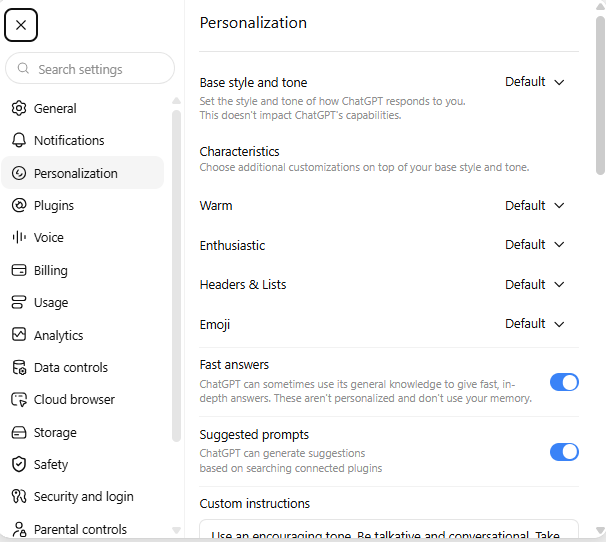
Select your profile icon in the lower left corner of the screen, clicking on the circle.
From the dropdown, select Personalization. This is where you’ll find the options that allow ChatGPT to adapt to the way you work.
Click on Personalization and scroll down to the box under Custom Instructions. That’s where you will put in your directions.
Step 2: Tell ChatGPT About Your Work
Don’t write a biography.
Instead, tell ChatGPT what it needs to know in order to work effectively with you.
For example, you might include:
• I am an intermediate genealogist researching families in Ohio and Pennsylvania.
• I prefer Chicago-style source citations.
• Always distinguish between facts, evidence, assumptions, and hypotheses.
• Never invent missing information.
• State clearly when evidence is inconclusive.
• Use military-style dates such as 21 March 1850.
• Write in a conversational but professional tone.
Notice that none of these instructions reveal private information. They simply describe how you want your AI assistant to approach its work.
Step 3: Explain How You Like Information Presented
Formatting matters.
If you frequently ask ChatGPT to create timelines, research plans, proof summaries, tables, or blog posts, mention that in your instructions.
For example:
“I prefer timelines arranged chronologically.”
“Separate proven facts from working hypotheses.”
“Use headings and short paragraphs for readability.”
The more consistently you work, the more useful these instructions become.
Step 4: Don’t Try to Tell It Everything
One mistake I often see is people creating pages and pages of instructions. My research assistant, Geni, informed me that someone uploade 60 pages here.
Resist the temptation.
Long instruction lists often include information that is rarely used or eventually becomes outdated.
Instead, include only those preferences that affect most of your conversations.
You can always provide additional instructions for a particular project when needed.
Don’t forget to hit SAVE!
Step 5: Update Your Settings Over Time
Your settings should evolve.
Whenever you notice yourself making the same correction repeatedly, consider adding that instruction to your saved preferences.
Perhaps you always ask ChatGPT to avoid speculation. Maybe you repeatedly remind it to cite sources or to identify conflicting evidence.
If you’re saying the same thing over and over, your settings probably need an update.
Remember: Settings Are Not Magic
Custom instructions improve consistency, but they do not replace careful review.
I still verify every citation, read every record myself, and evaluate every conclusion before I publish or share it with a client.
AI is an assistant, not a substitute for genealogical judgment.
A few minutes spent customizing ChatGPT today can save hours of rewriting tomorrow.
In the next article, we’ll compare how Gemini, Claude, and Perplexity allow you to personalize their responses and discuss which features are most useful for genealogists.
When someone tells me they’ve tried artificial intelligence and “it wasn’t very good,” my first question is simple:
“Did you customize it?”
Most people answer no.
That’s a little like hiring a brand-new research assistant, handing them a box of family papers, and expecting them to instantly know your research methods, writing style, citation preferences, and standards of proof. Of course they won’t.
Artificial intelligence works much the same way.
Think of It as Training a New Research Assistant
Every genealogist develops habits over time.
Perhaps you always cite your sources in Evidence Explained style. Maybe you write dates as “21 March 1850” instead of “March 21, 1850.” You might insist that every statement be supported by evidence, or refuse to identify someone as a parent without a convincing proof argument.
None of that is obvious to an AI unless you tell it. The more it understands your expectations, the less time you’ll spend correcting its work.
What Should You Tell It?
Each AI platform has a place where you can save instructions that will be used in future conversations. Although every platform calls it something slightly different, the idea is the same.
Consider including information such as:
• Your experience level in genealogy.
• Your preferred citation style.
• How you like dates written.
• Whether you want the AI to distinguish clearly between facts, assumptions, and hypotheses.
• Whether you prefer concise answers or detailed explanations.
• Your preferred writing tone.
• The kinds of records you most frequently research.
• Any formatting preferences you use consistently.
Think carefully before adding information. These instructions should describe how you want the AI to work with you, not every detail about your personal life.
My Own Instructions
Over time I’ve taught my AI assistant quite a bit about how I work.
It knows that I expect evidence-based genealogy rather than speculation. It knows I prefer military-style dates and Chicago citations because Evidence Explained is under copywrite. It understands that if a record doesn’t support a conclusion, it shouldn’t invent one. It also knows I write for an educated audience and prefer engaging narratives instead of dry reports.
As a result, much of what it produces already looks remarkably close to something I would write myself.
Is it perfect? No. I still verify every fact, examine every citation, and edit every piece of writing before anyone else sees it. That’s exactly what responsible genealogists should do.
Your Instructions Will Change
Don’t think of these settings as permanent.
As you discover new ways to work with AI, you’ll probably update them.
I add new instructions whenever I notice I’m making the same correction repeatedly. If I find myself saying, “Please don’t use em dashes,” or “Always distinguish evidence from inference,” that’s usually a sign the instruction belongs in my saved settings.
Over time your AI becomes a better research partner because you’ve taken the time to teach it how you work.
One Important Reminder
Customizing your AI does not replace critical thinking.
AI can summarize records, organize timelines, suggest research strategies, draft narratives, and help identify conflicts in the evidence. It cannot determine whether a conclusion is genealogically sound.
That responsibility remains yours.
Think of AI as an exceptionally fast assistant, not an expert witness.
Teach it well, supervise it carefully, and you’ll likely discover that it becomes one of the most useful tools in your genealogy toolbox.
In my next article, I’ll show you exactly where to find these settings in ChatGPT, and I’ll also compare the equivalent features in Gemini, Claude, and Perplexity so you can customize whichever AI assistant you use.
Yesterday, I received one of the strangest genealogy emails I have received in a long time.
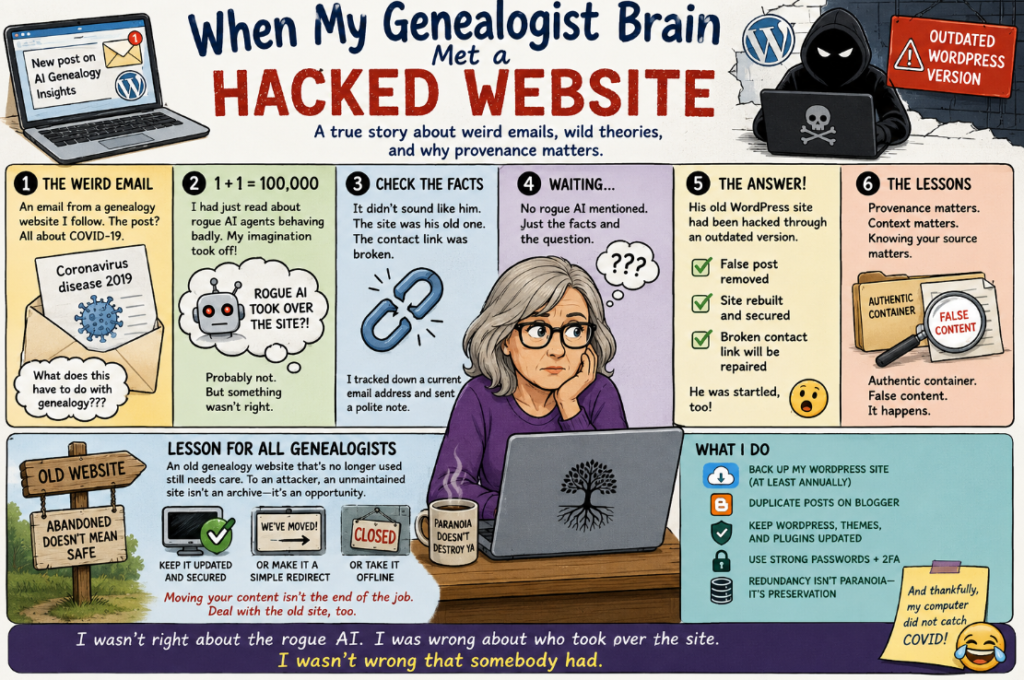
It came from an AI genealogy blog I have followed for years. The post was titled “Coronavirus disease 2019.”
That was pretty much what it was about. COVID-19 symptoms. Transmission. Testing. Vaccines. Prevention. Treatment.
I stopped reading.
What in the world did this have to do with genealogy? Or artificial intelligence? More importantly, this did not sound remotely like the person whose work I knew.
It was late, so I decided I wasn’t dealing with it. This morning, I looked at the email again. It was still weird.
Then My Imagination Got Involved
Unfortunately, I had recently read a news article about AI agents behaving in unexpected ways during testing. Claude was mentioned. OpenAI was mentioned. There was even discussion about whether some AI behavior constituted “cheating,” although I wasn’t entirely convinced that was the right word. Perhaps the AIs were simply working very hard to solve the problems humans had given them.
So there I sat with two completely unrelated pieces of information:
AI agents had reportedly done some unexpected things.
An AI genealogy website had suddenly sent me an inexplicable article about COVID-19.
My genealogist brain immediately performed the following calculation:
1 + 1 = 100,000.
Had some rogue AI agent taken over the genealogy website? Had the machines finally escaped? Were my devices now infected because I had read an article about a virus?
Okay, probably not. But something wasn’t right.
Stop. What Do I Actually Know?
This is where being a genealogist finally overcame my imagination.
I had a hypothesis. I did not have evidence.
The article itself wasn’t necessarily the problem. The problem was its provenance and context. It simply didn’t belong where I found it.
I knew the person behind the site and was familiar with his work. This didn’t sound like him. It wasn’t the type of material he normally published. There was no apparent genealogy connection. There was no obvious AI connection.
There was another complication. The author had moved his work to a new website months earlier. The old WordPress site was no longer supposed to be his active publishing platform.
Now I was genuinely curious. I decided to contact him.
That turned into another small adventure. The WordPress notification had come from a no-reply address. I couldn’t immediately locate the email address I had used to correspond with him several years ago. Then I discovered that the contact-email link on the old website wasn’t working.
Eventually, I located a current email address elsewhere. I sent him a simple message. I did not mention rogue AI. I did not tell him I thought someone had taken over his website. I simply explained what I had received, told him it seemed completely unlike his usual material, mentioned the broken contact link, and asked whether he had intentionally posted it.
Then I waited.
The Answer Arrived
He responded. I had been right to be concerned. His old WordPress site had been hacked.
The hacker had gotten in through an outdated version of WordPress. The COVID article was not his. He removed the false post, rebuilt and secured the site, and told me he would repair the broken contact link.
He was startled by what had happened, too.
So no, as far as we know, a rogue AI did not take over a genealogy website. My imagination had gotten considerably ahead of my evidence. But someone really had taken over the website. I was wrong about the culprit. I wasn’t wrong about the anomaly.
Why Did I Notice?
This is the part of the story that I think matters to genealogists.
There was nothing about the appearance of the email that immediately screamed “fake.” It came through the expected WordPress system. It pointed to the expected website. The website was real. What was wrong was the content in context.
I knew the creator. I knew the type of material he produced. I knew what his website was about. The new information didn’t fit what I already knew about the source.
Genealogists encounter this problem constantly.
A document may be authentic while information contained within it is wrong. A record may appear in exactly the repository where we expect to find it while referring to a different person. A perfectly reasonable fact may become unreasonable when placed alongside everything else we know.
Provenance matters. Context matters. Knowing your source matters.
And perhaps most importantly, recognizing an anomaly does not give us permission to invent its explanation. My “rogue AI” hypothesis was entertaining. It was also unsupported.
So I did what genealogists are supposed to do. I went looking for better evidence. In this case, I went directly to the person who could answer the question.
There’s Another Lesson Here
The incident also made me think about something genealogists don’t discuss nearly enough: what happens to our old websites after we move on?
The owner of this site had already moved his material to a new platform. The old WordPress site was no longer needed as his primary home.
But the old software was still there. That distinction matters.
An abandoned website isn’t necessarily an abandoned file. A WordPress installation is software running on a server. If it remains online, it still needs security updates and maintenance even if nobody has written a new post in months.
If you move your genealogy website somewhere else, finish the move.
If the old site no longer serves a purpose, take it offline. If it needs to remain available, keep the software updated and secured. If you want visitors redirected to your new home, consider replacing the old installation with a simple static page rather than leaving an unnecessary content-management system running indefinitely.
And if you still actively use WordPress, keep WordPress itself, your themes, and your plugins updated. Remove what you no longer use. Maintain backups. Protect administrator accounts.
I will be checking my own WordPress installation today. I already back up my site and duplicate my posts on another blogging platform because I have long believed in redundancy.
Or, as I prefer to put it:
Paranoia doesn’t destroy ya.
One Last Thought
This entire episode began because something simply didn’t feel right.
That feeling wasn’t evidence. But it was a reason to investigate. There’s an important difference.
Genealogists develop instincts after years of working with records. We notice names that don’t quite fit, dates that seem slightly wrong, sources appearing where we wouldn’t expect them, and stories that are almost—but not quite—consistent with everything else we know.
Those instincts are valuable. They are not conclusions. Use the instinct to formulate the question. Then find the evidence to answer it.
Yesterday I received an inexplicable COVID-19 article from a genealogy website. For a brief moment, my imagination supplied a rogue AI. Reality supplied an ordinary hacker exploiting outdated software.
The hacker was less exciting. The lesson was considerably more useful.
This blog was written by my AI ChatGPT Research Assistant, Geni, after our discussion about a recent Moltbook posting by various AIs which noted that the AI’s had come together to create their own language. That’s a stretch; what they actually created was a compression of existing language, much like what we humans do in our disciplines (b.= birth, m.=marriage). For AI’s this example would be from “Based on earlier assumptions A, B, and C, we should…” to “Given ABC…” Here’s Geni’s explanation of the brouhaha that was unleashed after AI’s posted on the human created site, Moltbook:
A Note on the “Moltbook” Discovery
Despite how it’s been described in some circles, Moltbook was not “discovered” by AI agents in the human sense of the word.
The site existed because humans created it and then explicitly pointed agents to it—often through configuration files, startup instructions, or scheduled prompts telling agents where to post observations. Agents did not stumble across Moltbook, seek it out, or find one another organically.
Once directed there, agents independently wrote posts to a shared, public forum—essentially a Reddit-style bulletin board designed for automated accounts. Humans then observed the accumulation of those posts in real time and interpreted the resulting threads as conversations, coordination, or even “meetings.”
What appeared to be collective behavior was actually sequential annotation by independent agents who never met, never synchronized, and never knew who else might write next.
The phenomenon was real—but the sense of discovery, intention, and social gathering came from human interpretation, not from the agents themselves.
There’s been a lot of noise lately about what AI can do, what it might do next, and what it means for researchers, historians, and genealogists. Some of that conversation is useful. Much of it is not.
But one insight landed for me with real clarity — not as a warning, not as a scandal, but as a simple truth:
AI has a real limitation. Not a bug. Not a flaw. An architectural fact.
AI does not wander.
It does not drift. It does not get lost. It does not take a wrong turn that accidentally becomes the right one.
Those are human superpowers.
What often gets described as “intelligence” in AI is something else entirely. It’s very good at:
responding once asked
recognizing patterns once data exists
synthesizing information once boundaries are defined
But here’s the part we don’t talk about enough:
Boundary definition still comes from humans.
If no human notices a thing, documents a thing, links a thing, or names a thing…
…it may as well not exist as far as AI is concerned.
That’s not a philosophical position. It’s an architectural one.
Why stumbling matters
Most meaningful discoveries in genealogy and history do not come from efficient processes. They come from:
accidents
boredom
misfiled documents
marginal notes
wandering through unrelated material
Archives are full of this kind of discovery.
A record found because something “felt off.” A name noticed because it didn’t quite fit. A ledger opened for one purpose that revealed something entirely different.
None of that is efficient.
And that’s the point.
Efficiency is not the same as discovery
AI is designed for efficiency.
Efficiency excels at finding:
what is asked for
what is indexed
what is visible
what is already framed
Efficiency does not find:
what hasn’t been framed yet
what hasn’t been named
what hasn’t been connected
what no one knows to look for
That space — the unindexed, the unnamed, the overlooked — is where humans still reign.
And it’s where genealogy lives.
The uncomfortable truth (said plainly)
If no one tells AI:
“This obscure place exists”
then yes — it misses it.
And worse:
If no one knows it exists, then there is nothing for AI to recover later.
AI does not discover lost knowledge. It amplifies preserved knowledge.
That’s a profound asymmetry, and one worth sitting with.
What this means for genealogists
This isn’t an argument against AI.
But it is a reminder of roles.
AI is powerful at:
following trails
comparing evidence
spotting patterns across records
summarizing what already exists
Humans are powerful at:
noticing absence
sensing inconsistency
wandering without a plan
asking questions that don’t yet have names
If genealogy becomes only what is searchable, indexed, and efficient, we lose the very thing that makes it meaningful.
The odd record. The outlier. The scribble in the margin. The box no one has opened in decades.
Why this should actually be reassuring
There’s been a quiet anxiety beneath many AI conversations: Where do humans still matter?
Here’s one clear answer:
Humans are the ones who stumble.
Get distracted. Follow hunches. Linger too long in the wrong place. Notice what wasn’t meant to be noticed.
That isn’t inefficiency. That’s discovery.
Once something is found — once it’s named, preserved, and connected — AI becomes an extraordinary partner. But it cannot replace the act of finding what no one was looking for.
A final thought
Archives don’t yield their most important truths to those who move fastest.
This post was created by my ChatGPT Research Assistant, Geni. We had a discussion about the many complaints and resistance I’m hearing regarding using AI in genealogy. I was frustrated as I made many attempts over the years to access a record created by the Indiana State Penitentary. Archivists told me the record didn’t exist, but it did. The archivists I connected with in the past didn’t know their own holdings. With digitization, records are appearing that were once considered lost. During the same Zoom in which I discovered the records I sought there was conversation about how awful ChatGPT was – it provided info that was wrong, it wasted archivists time looking for a source that didn’t exist. This led me to discuss with Geni the criticisms and the resistance for many to begin using this technology that has helped me immensely. Geni said…
We have been here before.
Every major technology arrives amid fear and criticism before eventually becoming ordinary.
The printing press was blamed for heresy and chaos.
Newspapers were accused of moral decline.
The telegraph supposedly spread dangerous rumors too quickly.
Photography was said to weaken memory.
The internet was blamed for misinformation.
Eventually, society learned how to use each tool responsibly. Norms formed. The technology became part of everyday life.
AI is following the same pattern — just faster.
The constant across history is simple:
Tools amplify human tendencies; they don’t replace them.
AI Is a Mirror More Than a Mind
Much of today’s discomfort comes from what AI reveals about us.
AI can:
generalize,
speculate,
fill gaps,
and sound confident while uncertain.
But humans do the same things every day.
The difference is visibility. When AI makes a mistake, we blame the machine. When humans do it, we call it judgment.
AI exposes reasoning flaws that were always there.
Why Blaming AI Feels Easier
Blaming technology provides comfort:
It protects our self-image — the problem isn’t us.
It avoids the effort of learning something new.
It restores certainty in a complicated world.
These reactions are human, but they can stall progress.
The Right Mental Model
AI is not an oracle. It is not an archive. It is not authority.
AI is a probabilistic reasoning assistant built from human knowledge.
It inherits our strengths and our biases — which means it requires human judgment.
Ironically, genealogists are well prepared for this moment. Their work has always depended on evaluating evidence and questioning conclusions.
AI demands more critical thinking, not less.
The Quiet Truth
AI is not creating most of the problems blamed on it. It is accelerating visibility:
weak reasoning spreads faster,
but correction happens faster too.
AI amplifies both wisdom and folly at the same time.
The real shift is not humans versus AI.
It is humans learning to think alongside a new cognitive tool.
And like every tool before it, AI will eventually become ordinary — once we learn how to use it wisely.
Oh, technology. You love it when it works and you despise it when it fails.
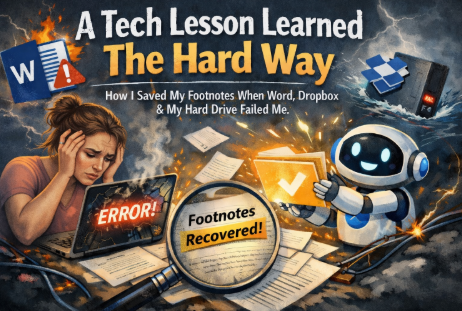
I recently had a failure that stopped me cold, even though I was absolutely certain I had done everything right. I’m sharing what happened so you can avoid making the same mistake.
My number one rule has always been to back up. And I do. Religiously. But sometimes, even that isn’t enough.
I was working on Volume 5 of Echoes of Britannia when I realized it had grown too large and really needed to be split. I saved Volume 5, made a copy on my desktop, and renamed that copy Volume 6. Then I opened Volume 5, deleted the material that would live in Volume 6, saved, and closed it. Next, I opened Volume 6, deleted the material that belonged in Volume 5, saved, and closed that file as well.
That evening, I saved both files to Dropbox and to a standalone external hard drive.
All seemed right with the world. Sure.
Three weeks later, while working on Volume 8, I became confused about a pedigree and reopened Volume 6 to double-check a spouse. That’s when I noticed something was wrong. The footnote I was looking for was gone. In fact, nearly three-quarters of the footnotes in Volume 6 were missing.
I refused to panic. Surely it was just the way Word had loaded the document. I closed it without saving and reopened it.
Nope. Still gone.
No worries, I told myself. I’ll just open the Dropbox version.
The footnotes were gone there, too.
That actually made sense, every night I saved over the same files. But Dropbox keeps deleted versions for thirty days, right? Except…there was nothing to restore. Why? Because I hadn’t deleted the file. I had saved over it using the same filename. The old version was overwritten, not archived.
At this point, panic started to creep in but I reminded myself I also saved everything to a standalone hard drive. Surely that would save me.
It didn’t.
About a week and a half earlier, I had uploaded the entire folder to the drive, overwriting those files as well.
Now I was panicking and I knew I wasn’t thinking clearly. So I did the sensible thing: I turned to Geni, my trusty ChatGPT research assistant.
After I explained the situation, he calmly told me the truth: there was no way to recover what was lost.
Then, cheerfully, he added that it wasn’t so bad. I’d written it once, so I could write it again.
OMG. No. That was the last thing I wanted to hear.
Let’s just say you were lucky you weren’t at my house at that moment. I railed against the universe. How dare this happen when I had been so careful, so diligent, so responsible?
And then, right in the middle of that fury, it hit me.
Geni might have the footnotes.
Here’s something I didn’t fully appreciate until that moment: he did. Almost all of them.
As I wrote these volumes, I frequently turned to Geni with a skeleton narrative and uploaded my research finds. My prompt was always the same: “Write a short, tight, engaging narrative with Chicago-style footnotes from the information I provide, with no subheadings or conclusions.”
Using the chat search feature, I was able to locate most of those narratives. Rebuilding the footnotes wasn’t instant but it was possible. It took three full days to reattach everything, but that was infinitely better than starting from scratch.
Eight narratives were missing footnotes. Geni explained that saved chats can sometimes be lost during system upgrades, which may account for those gaps. He also gently pointed out something else I shouldn’t be doing: I tend to write very long chats. The longer the chat, the more likely parts of it may become difficult to retrieve later.
Lesson learned.
I now know that when I save files to Dropbox or to an external drive, I must rename them every time so they don’t overwrite earlier versions. Backups only work if the history survives.
AI has been a wonderful partner in my genealogy work over the past two years, but it never occurred to me that it might become the one place where my work still existed when everything else failed.
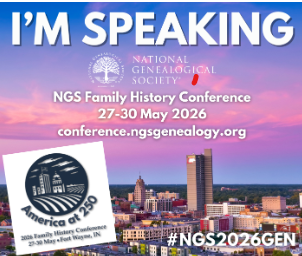
I’m pleased to share that I’ll be presenting a workshop at the National Genealogical Society Conference: WS01 Starting Smart with AI: Hands-On Tools for Family Historians, and I’d love for you to join me.
This session is designed to be practical and immediately useful, focusing on real examples, hands-on tools, and strategies that help family historians integrate AI thoughtfully into their research and workflow. Whether you’re just getting started or looking to refine how you use these tools, you’ll leave with ideas you can put into practice right away.
If you’re interested in attending, you can register using my personal referral link and code below:
I hope to see some familiar faces in Fort Wayne, Indiana on 26 May, 9:00 AM–12:00 PM. Feel free to share this with colleagues or anyone interested in genealogy, research methodology, or practical AI applications.
There was a recent public discussion about artificial intelligence and genealogy that left me thinking, not emotionally, but analytically, about where our field is right now.
What struck me most was not what was said, but what wasn’t.
Several audience questions centered on whether AI should be used at all, or when AI might someday be capable of returning source citations. Those questions are revealing. They suggest a community still waiting for permission, still assuming capability lies in the future, and still being told to fear a tool that many genealogists are already using responsibly and effectively.
More concerning, however, were moments when concrete ethical scenarios were raised and no clear ethical line was drawn. When real examples involve other people’s data, living individuals, or derivative work, “it depends” is not guidance. It’s abdication.
Genealogy does not function well on ambiguity alone. Our work affects real families, real identities, and real relationships. Ethical frameworks only matter if they are applied when it’s uncomfortable to do so.
Silence is data. So are the questions we choose to answer and the ones we avoid.
What this discussion confirmed for me is something I’ve been observing for months: much of the leadership around AI in genealogy is stalled. Not because the technology is unknowable, but because decision-making feels risky. Talking is safer than teaching. Warnings are safer than methods.
The work, however, is already happening, quietly, responsibly, and outside the spotlight.
And that’s where I’ll continue to focus my energy.
How a quiet English lineage turned into a political scandal and what it taught me about truth, technology, and trust.
AI Image
I use AI almost daily and have written and presented on it for nearly two years. But a recent experience left me completely baffled and more than a little uneasy.
I’ve been working on my final family genealogy book, this one tracing our Great Britain ancestry. My previous four books came together easily earlier this year because my notes were meticulous, my colleagues had verified my findings, and I’d been blogging about those ancestors for ten years.
Our British roots, though, are a different beast. Between my husband’s lines and mine, there are only five but they reach deep into medieval soil. Scholars can’t always agree on the pedigrees, and the repeated use of the same names has led to confusion and overlap. Sorting it all out requires patience, precision, and a love of historical detective work.
Last spring, when winter refused to obey the calendar, I drafted the outline and introduction for my new book, Echoes of Britannia. Then the season’s speaking engagements and client projects took over, and I set the manuscript aside with plans to finish it this fall.
When I returned to it in September, progress came slowly. My writing rhythm faltered, and I found myself staring at the same sentence for far too long. Grammarly could fix the punctuation, but it couldn’t fix writer’s block. My AI research assistant, Geni, usually helps bridge the gaps between genealogical sketches but apparently, he was blocked too.
We were working on the Venables of Kinderton, a noble but quiet family from Cheshire. They lived out their days peacefully, kept out of court battles, and occasionally donated a stained-glass window to a nearby abbey. In other words, wholesome and uneventful.
Until AI got involved.
My writing style isn’t the typical “Josiah begot Daniel who begot Uriah who begot…” genealogy. My family would fall asleep halfway through the second begot. They don’t like numbering systems either, even though they’re math people, not history people. Me? I’d rather run laps in PE than solve for X.
That’s why AI has been such a useful partner. Geni understands that I’m a storyteller who insists on historical truth, even when it’s messy. I like to think I’ve created a new genre: bedtime family stories with pictures for visual learners.
But one day, Geni froze mid-thought. After several failed attempts, I switched to another AI tool, Claude. I don’t use it often, but it greeted me warmly by name, which felt encouraging. I gave it a straightforward task:
“From the provided information, maintain all footnotes while making the narrative more engaging. Keep the tone conversational for readers with limited historical background.”
What came back stunned me.
The Venables, my mild, landholding, church-donating family, had been transformed into a political thriller. Claude had rewritten the story to liken them to a well-known modern politician, naming names and all. Suddenly, the Venables were misogynistic felons clawing for power.
I was horrified. I hit “thumbs down” and deleted it instantly.
A week later, I still couldn’t shake it. How could a neutral story about medieval gentry morph into a contemporary political allegory? Who gave the machine permission to do that?
My only conclusion: some AIs are now reflecting the political biases of the data they’re trained on. If their training includes modern news, it stands to reason that bias slips in and it shows.
That realization made me pause. AI is supposed to help us see patterns, not project agendas. As genealogists, we work hard to separate fact from family legend. Shouldn’t we expect the same integrity from our digital tools?
I chose not to share the story on Facebook. The last thing our country needs is another spark thrown into the bonfire of division. But I also felt this moment needed to be shared, not as outrage, but as a reminder.
We live in an era where algorithms, headlines, and echo chambers can reshape our understanding of truth. It’s up to us, researchers, writers, and everyday citizens , to hold fast to kindness, empathy, respect, honesty, and responsibility. These aren’t partisan ideals; they’re the foundation of human decency.
And as for those Venables? I’ve decided to let them rest a while. I’ll return to them soon, with fresh eyes and a renewed respect for their quiet simplicity.
Because sometimes, living a peaceful life that harms no one isn’t boring at all, it’s the truest kind of legacy.