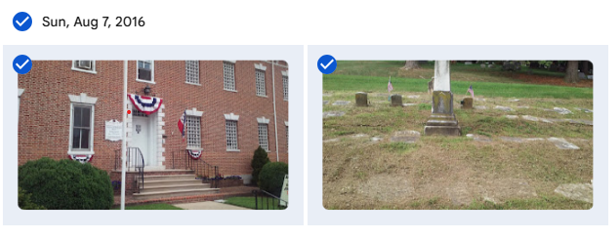
Are you tired of Google telling you that you need to purchase more storage? Are they threatening to shut down your email? One way to lessen the storage is to remove your photos from Google Photos. You can do this in batches which makes the task quicker. Here’s a quick how to. The photos below were taken on Sunday, August 7, 2016. I want to save all of them so I click the checkbox next to the date. If you don’t want to save all, click the checkboxes next the pictures you want to save:
Click the 3 dots and select download
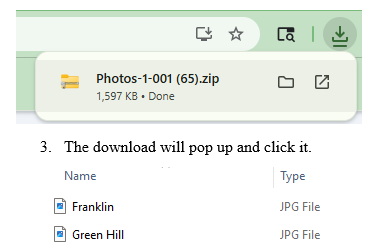
The download will pop up and click it.
Now, drop and drag to your Desktop. There you can rename – I add the date.
I create a folder by year (Right click your mouse, click “New” “Folder” and name the folder by year.
When done with saving the photos for that year, I drop the folder into Dropbox.
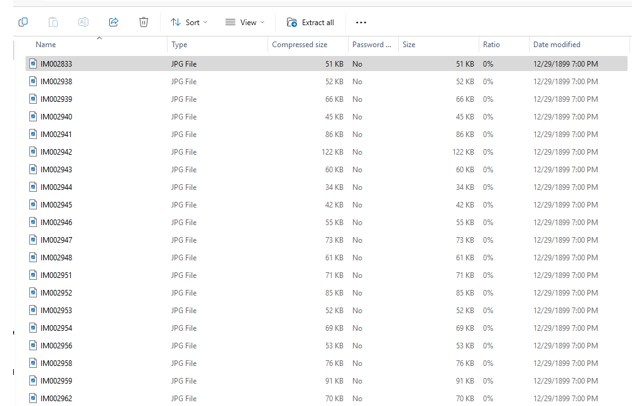
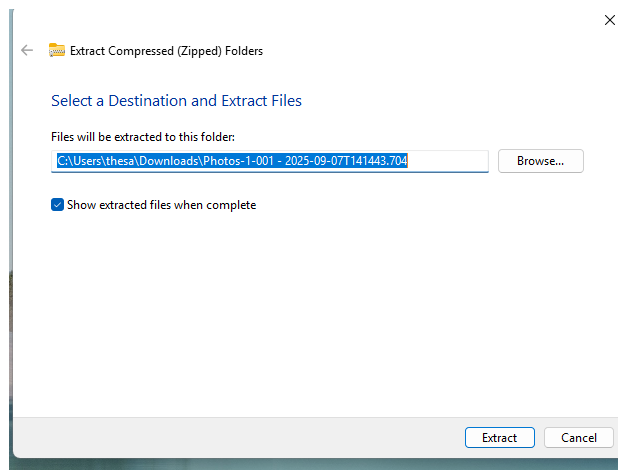
If you have a lot of pics, you can easily extract them at one time. Simply click the “Extract All” icon:
Make sure you have created a folder to place them in or they will be all over your desktop!
Just select the folder from Browse and click “Extract.”
Next you’ll want to delete the Google Photos you’ve saved.
Simply click the dates again and the checkmarks will return.
Click the 3 dots and select delete.
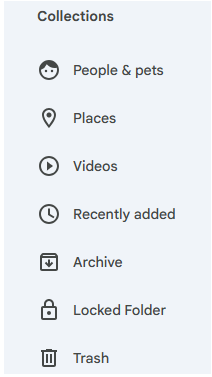
The deleted photos will remain for 60 days in Google Photos Trash; if you need to clear up space immediately, on the side bar, under Collections, scroll down (it’s hidden) to Trash:
4. Clicking on Trash will bring up all the photos you deleted. To lessen your storage numbers, click empty trash and they will all permanently disappear – make sure you are ready to get rid of them as you will not be able to retrieve them after emptying trash.
I’ll be honest, my storage numbers did not significantly drop after deleting large amounts of photos but they have stopped harassing me to buy more space! I also have a lot of emails saved which I plan to move out of Gmail. Will give you the process in an upcoming blog.
As an added safeguard, back up your Dropbox to a stand alone hard drive!
The weather hasn’t yet cooled and I’m not complaining but it is officially fall.
Before I get back to writing my next and final (hooray!) family genealogy book on our Great British lines I decided I had to practice what I preach and take care of some pressing tech tasks that I have put off for way too long. The first was really bothering me as it was boring and there are so many more interesting things to do in genealogy then preserve photos.
Long ago, in 2002, a world that was radically different then today, my cell phone saved all of my photos to a desktop program called Picassa that Google later purchased. I used that product until 2018 when Google rolled it into Google Photos. That’s when my problems began.
When Picassa ceased to exist it lost some of my photos, years 2002, 2007, 2010, and 2019. I wasn’t worried about 2002 & 2007 as my kids were still in school and I was still scrapbooking so I have those photos. I digitized the scrapbooks so we were good. 2010 & 2019, not so much. Sure, other family members probably have some of the photos but I always was the main photographer so much of that is lost. I know, it could be a lot worse but still, not happy about it.
The next issue was with the rollover, some of my photos were doubled and even tripled. New photos were created from group shots – just the heads of whatever the tech decided to select. Then it began creating memory albums. Now that doesn’t sound bad but it became a problem because it used up space and Google, tying all their products together, kept reminding me I needed to purchase additional space from them or I could no longer have a functioning email.
Occassionally, I’d go into photos and delete some of the duplicates and albums but they just would pop back up. On my to-do list was to remove ALL of my Google photos, store them in Dropbox, and back them up to a standalone hard drive. BORING. but. necessary.
For Valentine’s Day, one of my kids gave me a picture frame where you can store and see changing photos. This gave me the impetus to get the photos out of Google. Next week I’ll print the detailed directions on how you can do that fairly quickly and easily, meaning not saving one photo at a time which I initially was doing.
I also realized that I needed to synch my Ancestry.com tree as it’s been awhile since I did that. I no longer use RootsMagic and since I last synched, I got a new desktop so I didn’t have Family Tree Maker downloaded to it. Now FTM has come out with their update (in May 2025 but it’s called 2024, go figure). I somehow missed the promotions but they have one remaining, half price for current license members so I took advantage of it ($40 instead of $80). I decided if I was going to save Dropbox to the stand alone drive I might was well include my Ancestry tree since I’ve just blogged about how I was working at updating it. Yes, it’s still a work in progress but I’d rather save what I have as I’ll never be done with it.
Next up was to delete everything on my stand alone drive as it was all old and not relevant so I turned it back to factory settings. Took hours!
Meanwhile, one of our adult kids had their credit card stolen and the thieves, being really stupid – (Jose Lopez – I am calling you stupid!) bought items in their own name and then had it sent to our kids’ address. (Now you see why I am calling Jose stupid – really, does he want to get caught? Don’t even need a forensic genealogist for that one.)
Jose or whoever was the original thief, was fairly smart at the beginning. Only purchased from stores the kid always uses so for the first two weeks the scam wasn’t noticed. Then, boldness hit and the thief began using it for large sums at stores never used by the kid. By the time it was noticed thousands of dollars of items had been purchased but thankfully, some get to be returned to the companies since they arrived at the kid’s house. (Jose, did you think you were then going to be a porch pirate, too?) Kid called the credit card company for a dispute and the police to file a report in case Jose was local and was going to be paying a home visit. Cop informed us that a local woman got taken for $499,000 the previous week because they also stole her social security number and took out loans. What a nightmare!
That made me realize it was time for me to update some of my own financial practices.
You may have some items on recurring charges. We’ve decided to use a separate card for those because it’s a major pain to have to contact those vendors to change an account if your card is shut down.
Since the card was stolen locally (we know this for reasons I’m not disclosing so the guilty can get their due, too bad, Jose, that bed you bought won’t get you a good night’s sleep in jail because it’s already been returned) we decided to use one card just for local purchases. It’s a card with a good reputation to notice fraud quickly so we won’t have to dispute lots of charges when (not if) it get’s compromised.
We’ll use another reputable card for online only purchases.
If you’re thinking, that’s a back up for a back up and yes it is, just like we do to save our genealogy data. This led me to realize it’s been awhile since I updated my passwords so I spent time doing that as well.
Last task I haven’t completed but is equally important, albeit BORING, is saving many of my emails. Lots of them contain genealogical info and I want to make sure the info is saved to the correct ancestor’s file in Dropbox. That’s my next project and by then, well, it’ll probably be time to redo the cycle.
With the colder weather u perhaps coming next week this is a gentle reminder, dear reader, to take a look at your items to do and start plugging away at them.
With the weather outside frightful, I decided it was time for me to clean my computer. I must admit I do not back up as frequently as I should. I did find a way that made the task quick and easy.
First, I never save to my computers. The reason is that I have been burned in the past by them dying unexpectedly. I got into the habit when I was working as a counselor saving to a cloud. Originally, I used a thumb drive but I’ve lost or broken too many and the switch to the cloud made my files accessible anywhere, anytime. I’ve used several cloud companies – OneDrive, Dropbox, and Google Drive. None are perfect but I prefer Dropbox. I do pay for a larger amount of storage. My phone photos go to Dropbox now as they used to go to Google Photos but a year ago, I noticed that some were missing and the transfer stopped entirely last June. My husband’s phone photos go directly to Google Photos but he, too, experienced missing photos.
As I mentioned in last week’s blog, I am having difficulty synching Ancestry.com with RootsMagic8. I tried it again after I blogged and it still didn’t work though I can synch to version 7. I also tried downloading my Ancestry.com tree, which is large, to Legacy Family Tree but was unable to do that, either. I don’t want to post the new tree to MyHeritage.com, which now owns Legacy. I have a tree on MyHeritage that I do not update as I don’t have time to keep all my online trees up to date. I have enough info on FamilySearch, Geneanet, FindMyPast, and MyHeritage to connect with other researchers. I then direct them to Ancestry which is my most accurate tree.
Sidenote: Several readers have commented that they are also experiencing difficulty with RootsMagic8. One recommended looking into Family Historian as an alternative and I plan to do that. Thanks, readers, for your input!
Due to my synching issues, I decided I should also back up my existing Google Photos, my husband’s photos, and Dropbox to a stand-alone hard drive. I had purchased a Backup Plus before I relocated but hadn’t gotten around to using it.
Stand-alone drives aren’t immune to failure, either, as while I was attempting to backup my husband decided he would clean some old drives he had. Three of five would not open. He’s working on it and is fairly good with tech so I’m confident he’ll figure it out. He recommended I save to two different drives, keeping one at our home and another at one of our adult kid’s house. That way, if something happens to one, there is a backup to the backup. Yes, this is paranoia but it is also my life history and that of my ancestors since I’ve gone digital. When tech changes, these drives will have to be updated to whatever device replaces them so know, in the tech world, you aren’t ever done. LOL, kind of like genealogy!
BACKING UP DROPBOX:
I looked everywhere on Dropbox for information on how to back up the files but found nothing. A Google search gave me several methods but none worked for me. It directed me to the ribbon to click on “Backup tab” which I didn’t have. Another suggestion was to go to Settings and click “Preferences” which I also didn’t have.
Determined, I just experimented and discovered it’s super easy – just right-click on a file folder, scroll down to “Send to >” and select where you want the file duplicated. I chose Backup Plus which went to my E drive as that was the name of my stand-alone hard drive. This took some time as I have LOTS of files but it worked well. Once in a while, the program would stall as it could not find address info. I clicked “Okay” to transfer without the data. I was able to open the file from the stand-alone hard drive with no problem.
BACKING UP GOOGLE PHOTOS TO DROPBOX:
The time spent on the transfer depends on how much media you have. I have tons since I began using Google Photos in the early 2000s.
First, to access your photos, click on the grid symbol
on the ribbon on the right side of your main Google search page.
Select “Google Photos”
Find Settings, mine is on the ribbon on the top right, the middle gear symbol:
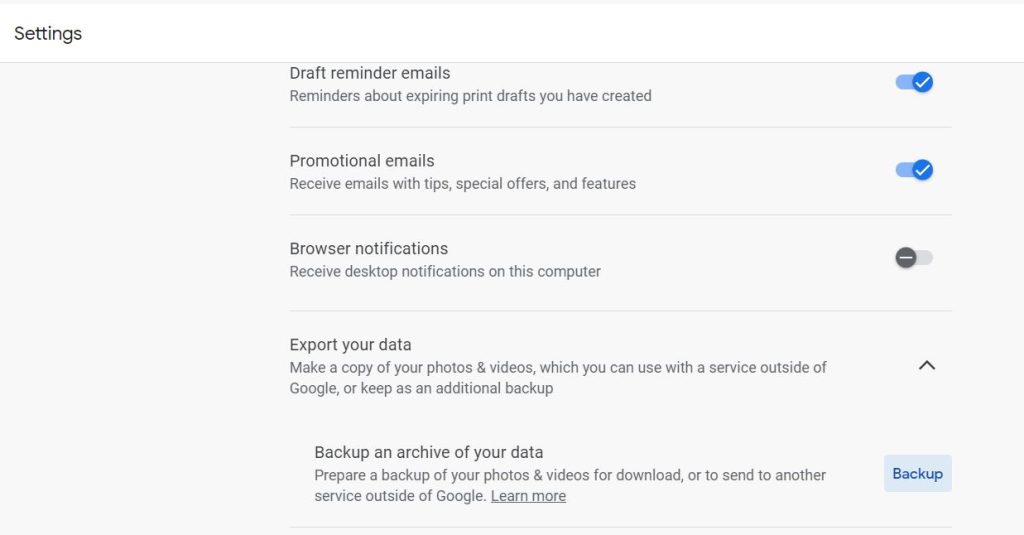
Scroll WAY DOWN to find “Export your data”:
Click Backup.
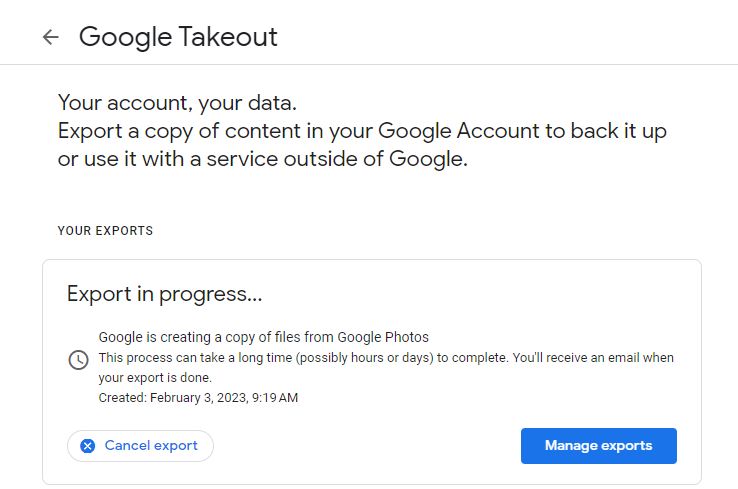
The page will show you that the “Export is in progress…”:
I haven’t gotten the email yet. I probably should not have tried to export both my and my husband’s photos simultaneously.
When I receive the email I will save it to Dropbox and then, follow my instructions above on how t save it to my external hard drive.
BACKING UP WEBSITES:
If you have a website, you might also like to save its content. I periodically do that by using a product called UpdraftPlus Backup Restore. I’m not providing the instructions here because I have an older version I probably should update. Sigh, tech is constantly changing!
Now that my files are in tip-top shape I’m ready to spend time on what I really love to do – find and analyze records!